Connect easy2book to rednea (through Google Calendar)
Last updated 20 November 2026
You plan your appointments with easy2book and want your rednea assistant to book appointments on the phone that reliably show there, and not to offer times that are already taken in easy2book? This is possible, and easy2book does not need an interface (API) to rednea for it.
The method: easy2book can connect a Google Calendar and, according to easy2book, syncs appointment entries with it in both directions in real time. rednea books through Cal.com into exactly the same Google Calendar. So both systems always see the same state. The Google Calendar is the shared hub.
You keep easy2book as your planning tool. Nothing changes in your online booking, your reminders or your appointment overview. Only one new booking channel is added: the phone, around the clock.
In short: You connect your Google Calendar once on both sides: in easy2book (connection of external calendars) and in Cal.com (the bridge to rednea). From then on: what rednea books on the phone, Cal.com puts into the Google Calendar, and easy2book takes it over through the real-time sync. What is booked in easy2book goes into the Google Calendar and is automatically blocked for the assistant. No slot can be given out twice.
What you need
- An easy2book account with the function connection of external calendars (Google).
- A Google account with the calendar in which your appointments must be (Gmail or Google Workspace).
- A Cal.com account, connected to rednea. If you have not set this up yet: the full guide with all images is in Connect your calendar to rednea. You need Parts A to E from it.
- Access to your rednea dashboard.
Plan about 25 minutes. All of it is a one-time setup.
How the parts work together
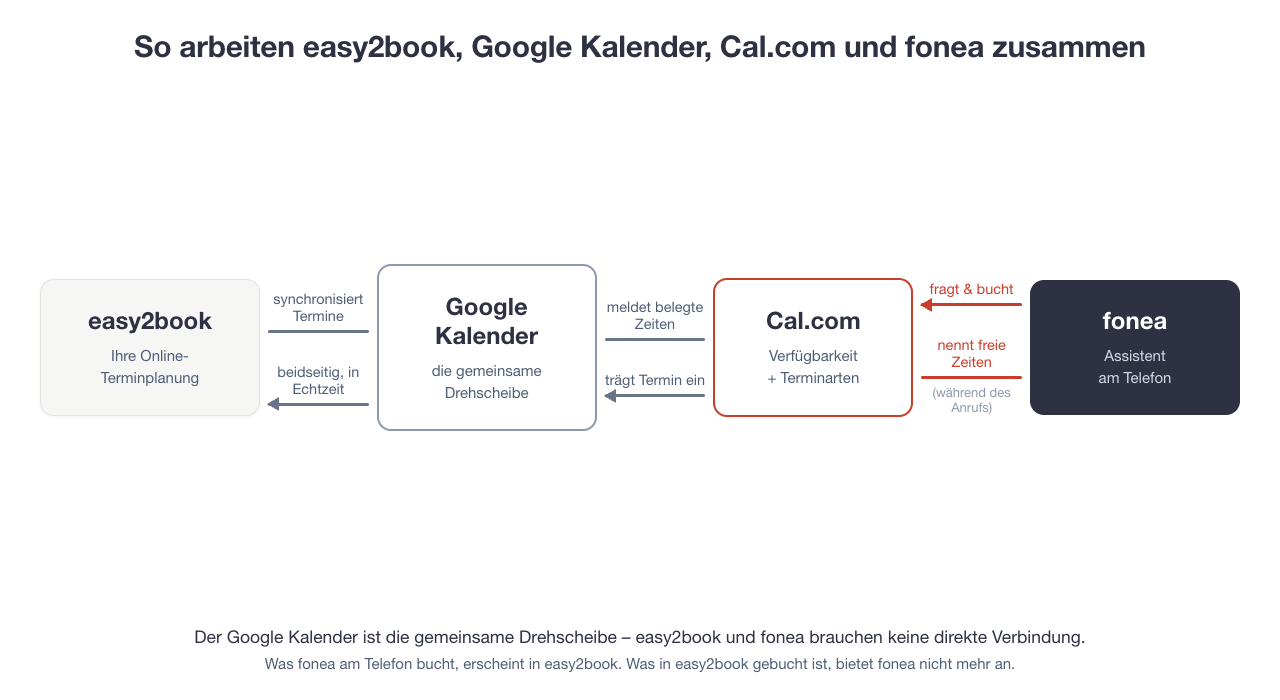
Four parts, each with one clear task:
- easy2book stays your appointment planning: online bookings, reminders, overview, all as before.
- The Google Calendar is the shared hub. easy2book syncs appointment entries with it in both directions and in real time.
- Cal.com is the bridge to rednea: it reads the busy times from the Google Calendar, knows your working hours and appointment types, and adds new appointments.
- rednea asks Cal.com for free times during the call, offers them and books.
Important: everything depends on one point. Both sides must be connected to the same Google Calendar. Not two different calendars in the same account, but exactly the same one. This is the only error that really breaks this coupling, and the most frequent one.
Why through Google Calendar (and not Outlook or iCloud)?
easy2book also connects Outlook and iCloud. But for this coupling we clearly recommend the Google Calendar: according to the easy2book feature overview, only there are appointment entries synced in both directions in real time. This is exactly what is necessary so that phone bookings show in easy2book at once, and online bookings are blocked for the assistant at once. The easy2book connection to Outlook is not made for this.
Part A: Connect Google Calendar to easy2book
This part happens in easy2book. There, the connection is a one-time setup.
Step 1: Open the calendar connection in easy2book
Log in to easy2book and open the settings for the connection of external calendars («Anbindung externer Kalender»). Choose Google Calendar and sign in with the Google account whose calendar will be the hub.
Note: The exact menus in easy2book can change; the function is called «Anbindung externer Kalender» there. If you do not find the setting, the easy2book support helps. The connection itself is their standard function.
Step 2: Check that the sync really works
Do the test in both directions before you continue:
- easy2book → Google: Make a test appointment in easy2book. It must show in your Google Calendar after a short time.
- Google → easy2book: Put an appointment directly in the Google Calendar (for example "Test blocker, 14:00–14:30"). In easy2book, this time must now count as busy. easy2book shows only the free times in the online booking.
When both directions work, the hub is ready. Delete the test appointments again.
Part B: Connect Cal.com to the same Google Calendar
If you already use Cal.com with rednea, only check that the same Google Calendar is connected there. Then go directly to Part C.
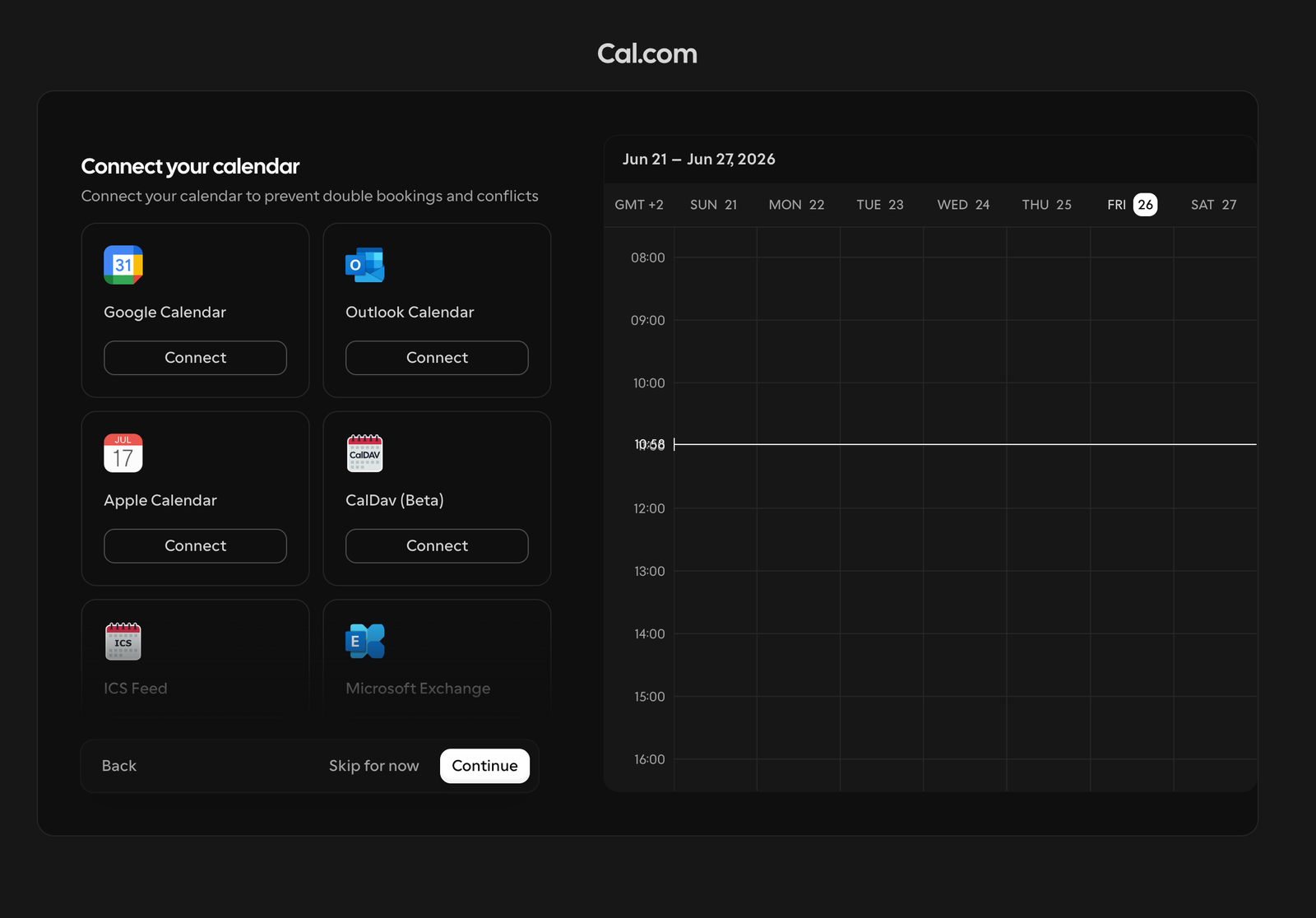
If not: first make a free Cal.com account with the guide Connect your calendar to rednea (Part A, with the data region European Union). At the step "Connect your calendar", choose Google Calendar and sign in with the same Google account as in Part A.
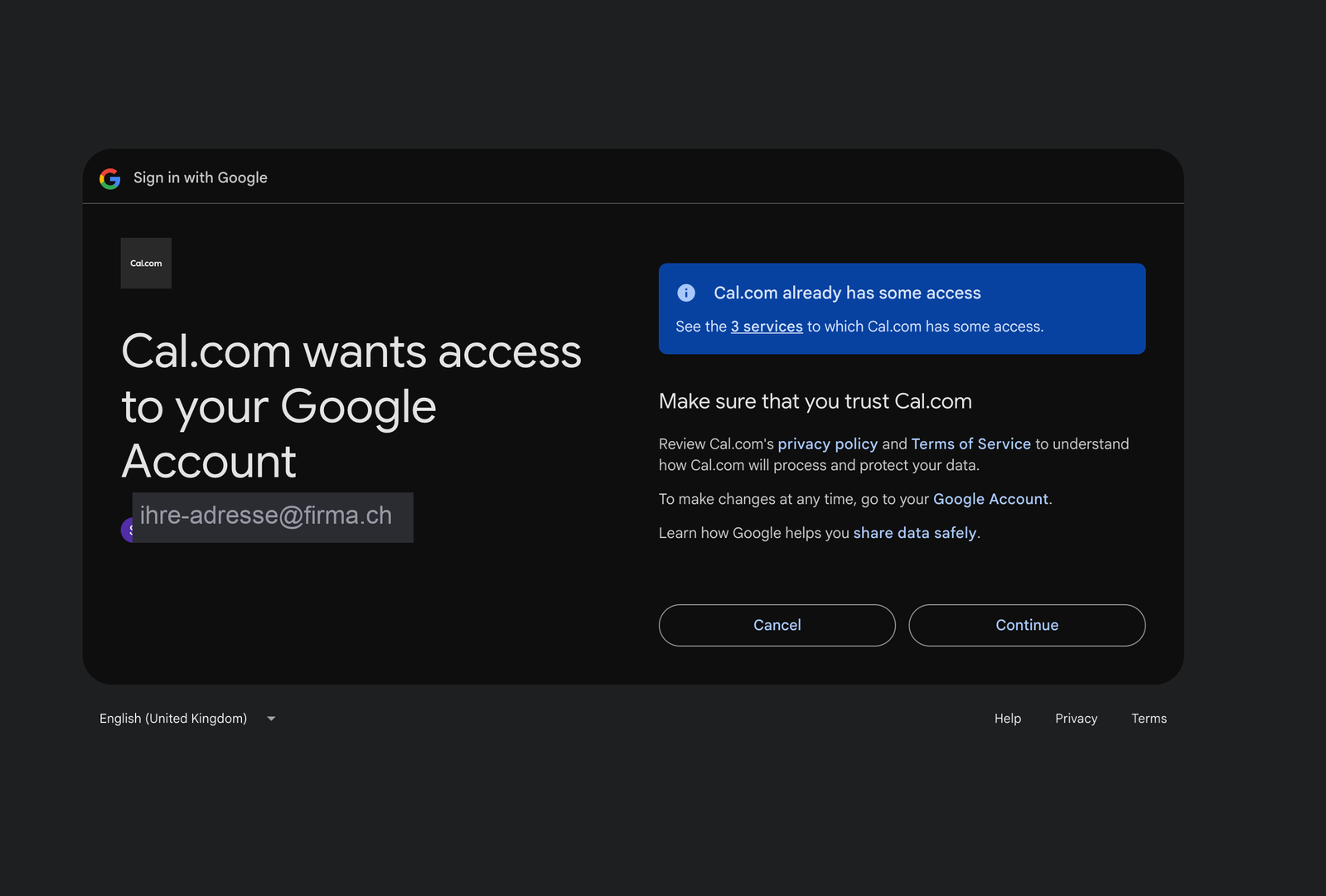
Google asks if Cal.com may access your calendar. Click Allow. Then Cal.com shows your busy times, including the appointments from easy2book, because they are already in the Google Calendar.
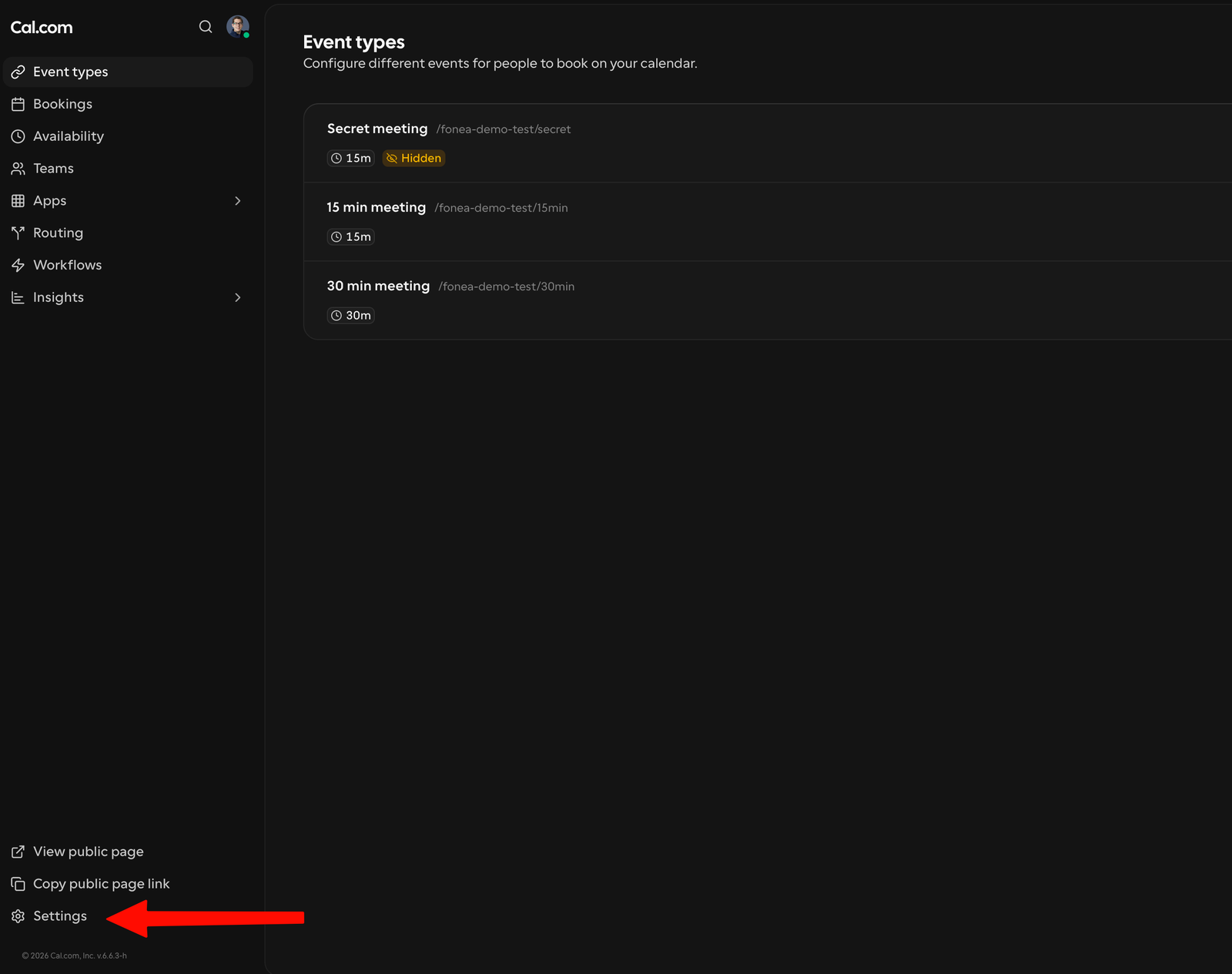
Check: In Cal.com, under Settings → Calendars, make sure that the calendar to add new appointments ("Add to calendar") and to check for conflicts ("Check for conflicts") is the same calendar that easy2book syncs.
Part C: Make appointment types that match easy2book
In Cal.com, under Event types, you make the appointment types that your assistant must offer on the phone. Take over the logic from easy2book, so that the same appointments can be booked on the phone as online, for example "Treatment 30 min" or "First consultation 60 min".
Two settings are very important for this coupling:
- Availability: your bookable times, for example Mon–Fri 8:00–18:00. Keep them the same as the booking times in easy2book.
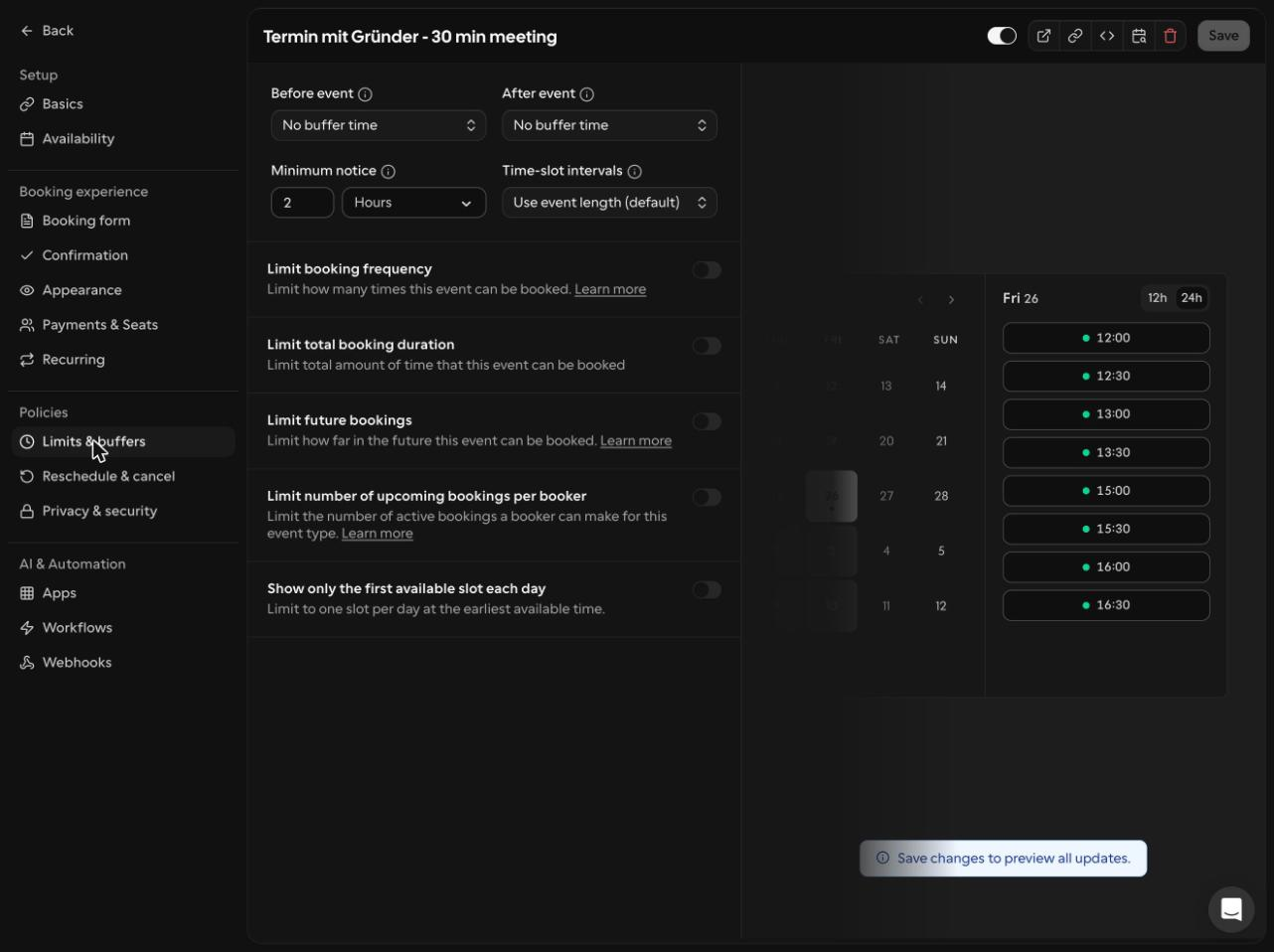
- Minimum notice: In the appointment type, under Limits & buffers, set a minimum notice of 1–2 hours. This gives the sync chain (easy2book → Google → Cal.com) a safety buffer and prevents offers of very short-notice slots that were booked online a moment ago.
Part D: Connect rednea
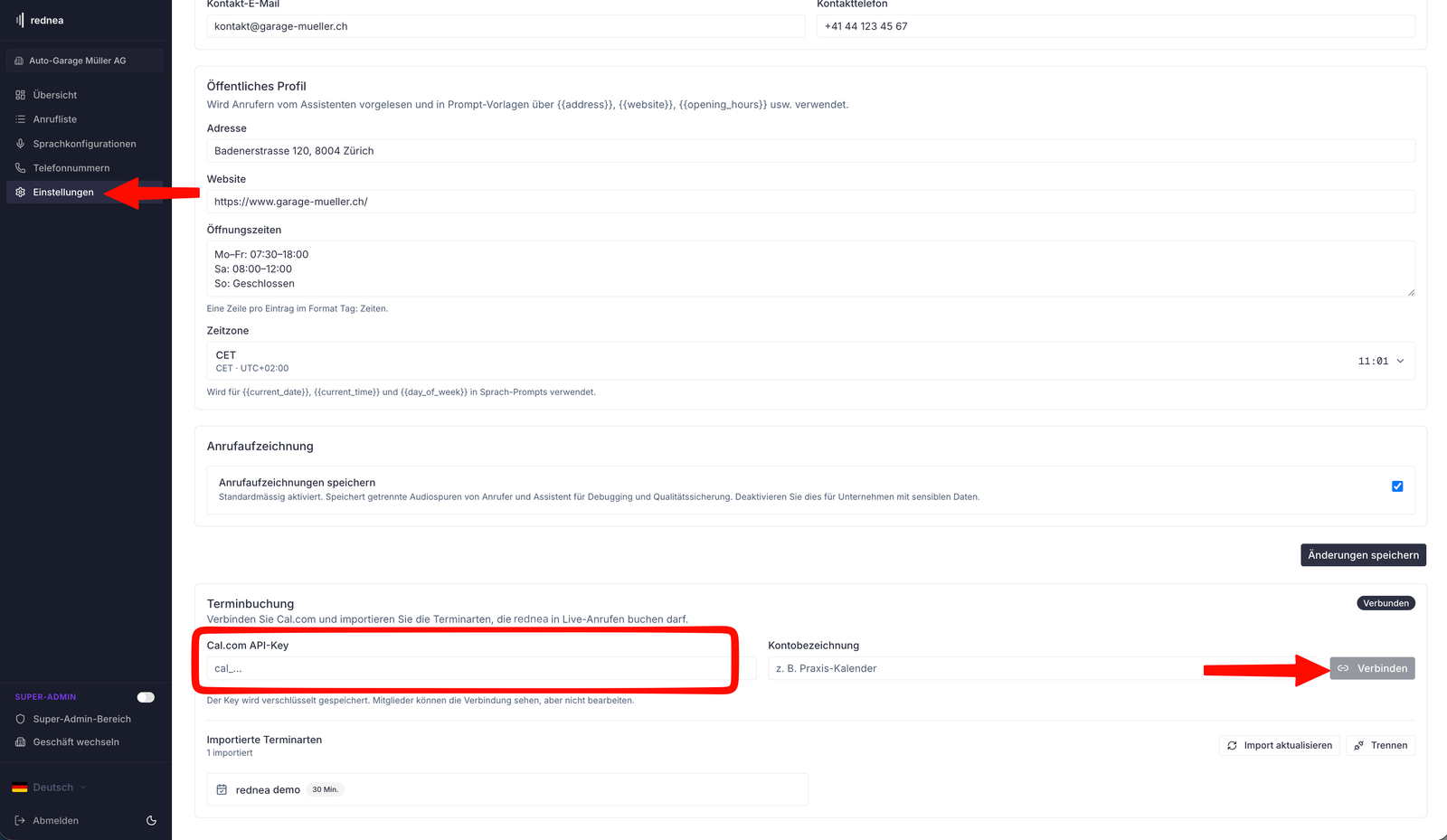
Now only the connection between Cal.com and rednea is missing: the API key. The image-by-image guide for this is in Connect your calendar to rednea (Parts D and E). Here is the short version:
- In Cal.com, under Settings → Developer → API keys, create a key (switch on Never expires) and copy it.
- In the rednea dashboard, click Settings on the left, then the Calendar tab at the top («Kalender», 1). In the Appointment booking section («Terminbuchung»), under Scheduling provider («Terminplaner»), choose Cal.com (2), paste the key into the Cal.com API key field («Cal.com API-Key», 3) and click Connect («Verbinden», 4).
- Click Assistants on the left, open your assistant and choose the Appointments tab («Termine», 1). Under Bookable appointment types, tick the appointment type you want (2), keep the option Book appointments under What the assistant does and click Save selection («Auswahl speichern», 4). Only then does the assistant offer appointments on the phone. The option Only name free times (3) does not book; it does not suit this coupling.
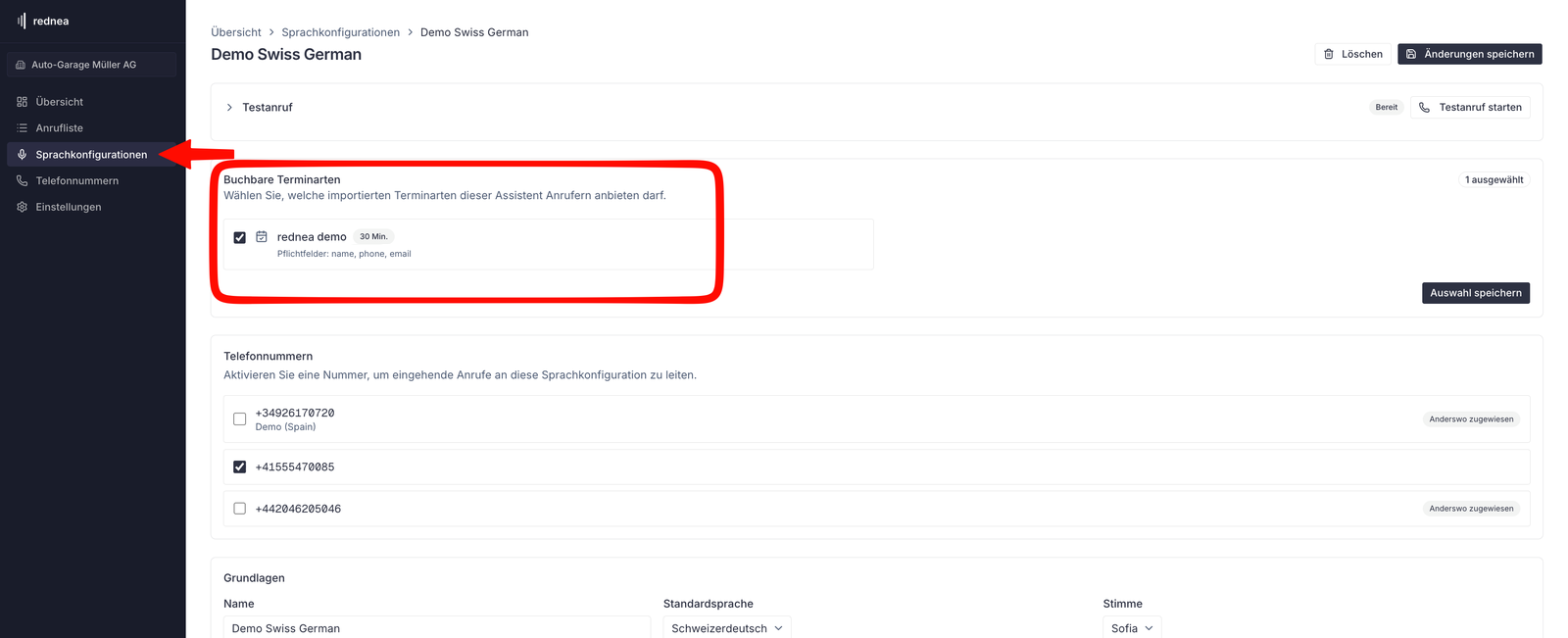
Many callers have no email address? If the appointment type also shows Email under Required fields, the assistant asks for it. How to change this in Cal.com is in Book appointments without an email address.
What happens during a call
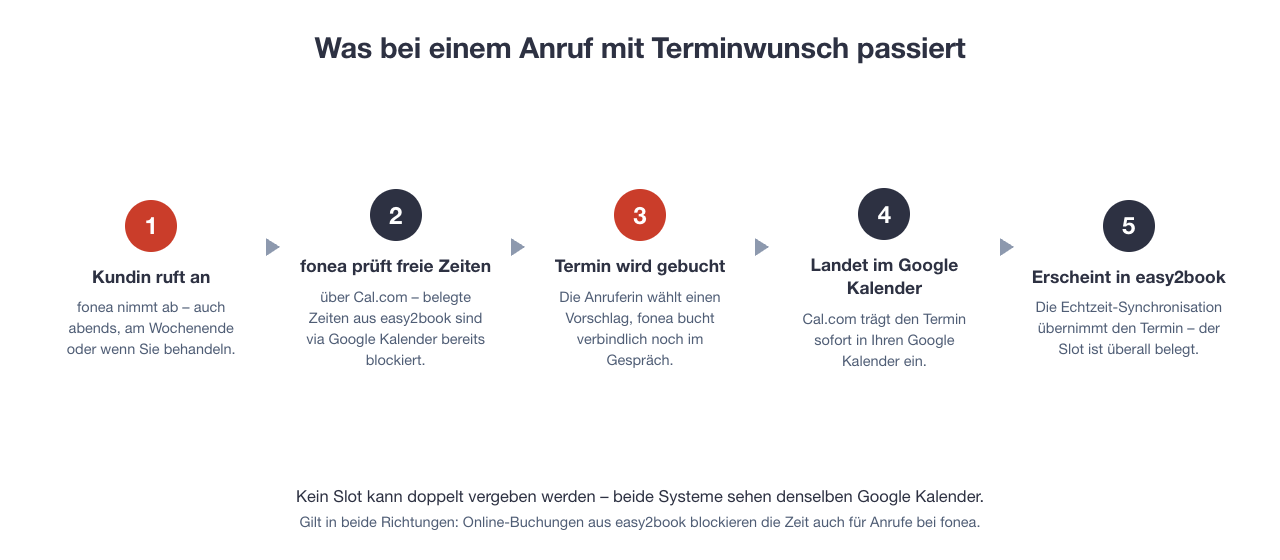
From now on, each call with an appointment request goes like this:
The end-to-end test
At the end, check the whole chain once, from the outside, as a real customer would:
- Test call: Call your rednea number from a phone and ask for an appointment. (A test call in the dashboard is not sufficient here: it only books as a simulation, and nothing arrives in the calendar.) The assistant names free times. None of them may clash with an easy2book appointment.
- Book the appointment. Check: it shows in the Google Calendar and shortly after in easy2book; the slot is no longer available in the online booking.
- Other direction: Book an appointment online through easy2book and then call again. The assistant must not offer exactly this slot any more.
When all three checks pass, the coupling is complete. From now on, everything runs automatically.
Tips for daily use
- Move and cancel: Change appointments as usual in easy2book (or in the Google Calendar). The sync carries the change everywhere, and the slot that became free can automatically be booked again, also on the phone.
- More than one therapist or room: Set up a separate Google Calendar for each person or resource and mirror this in easy2book and Cal.com (each with its own appointment type and its own calendar). This keeps the assignment clear.
- Display in easy2book: Phone appointments arrive in easy2book as synced Google Calendar entries. How easy2book shows external entries depends on your configuration there. What matters is that the slot is busy everywhere. You also get the details of the call (name, request, callback number) as usual in the rednea call summary by email.
Frequently asked questions
Does easy2book need an interface to rednea for this?
No. That is the core of this guide. The documented Google Calendar connection of easy2book, with two-way real-time sync, is fully sufficient. Both systems read and write the same Google Calendar; a direct connection between easy2book and rednea is not necessary. easy2book now also has a REST API (in the easy2book Plus plan); we build a direct connection through it on request.
Can double bookings still happen?
Practically not. Cal.com checks the busy times at the moment of booking, and easy2book syncs in real time. For the theoretical case that two bookings happen in the same second, the recommended minimum notice of 1–2 hours is the additional safety buffer: very short-notice slots are not offered on the phone at all.
I use easy2book with Outlook. Does this work too?
For this coupling we recommend Google: according to easy2book, only the Google Calendar is synced in both directions in real time. You can also set up the Google Calendar only for this purpose. It costs nothing and runs next to your Outlook.
Does my team see in easy2book what was booked on the phone?
Yes. The appointment is in the shared Google Calendar and shows in easy2book through the sync. The caller's name and request are in the appointment entry; rednea also sends you the full call summary by email.
What does the setup cost?
Nothing more: the Google Calendar is free, the Cal.com account in the Personal version too, and appointment booking is included with rednea. You keep your existing subscriptions for easy2book and rednea.
A menu item has a different name for me. Am I in the wrong place?
No. easy2book and Cal.com continue to develop their screens; labels can be slightly different. The logic stays the same: connection of external calendars in easy2book, connect the calendar in Cal.com, API key in rednea. If in doubt, you find the current image-by-image guide for the Cal.com side in Connect your calendar to rednea.
Related articles
Still have questions?
Write to us — we're happy to help. Or listen to a live demo right in your browser.