A call went wrong? How to report it to us
Last updated 20 November 2026
Your assistant said something wrong, did not answer a question or ended a call too early? Report the call to us. With the right details, we find it at once and see what happened.
In short: Open the call under Conversations and listen to the Recording. The transcript can be different from what was said: the recording is what counts. Then write to info@rednea.ch: which call (link, or date and time), what went wrong and what should have happened. You can fix many causes yourself: missing details about your business, unclear instructions or incorrect call forwarding.
1. Find the call
- Log in to the rednea dashboard and click Conversations in the left column.
- The newest calls are at the top. Find the call in the list, if necessary with the filters above the list (see below).
- Click the call. The Call Details open.
These filters are above the list:
- Date and time: choose From and To and click Apply.
- Direction: Inbound, Outbound or All directions. You see this filter only when rednea has switched on outbound calls for your business. The list then shows only inbound calls first. You find calls from campaigns under Outbound, see Outbound calls: set up a campaign.
- Channel: Phone, Web call or Web chat.
- Only needs attention: shows only calls where you must do something.
- Sort by: Most recent or Urgency.
Did you receive the summary by email? Then the button at the end of the email, View the full call, takes you directly to this call. For very short calls it is called View the call.
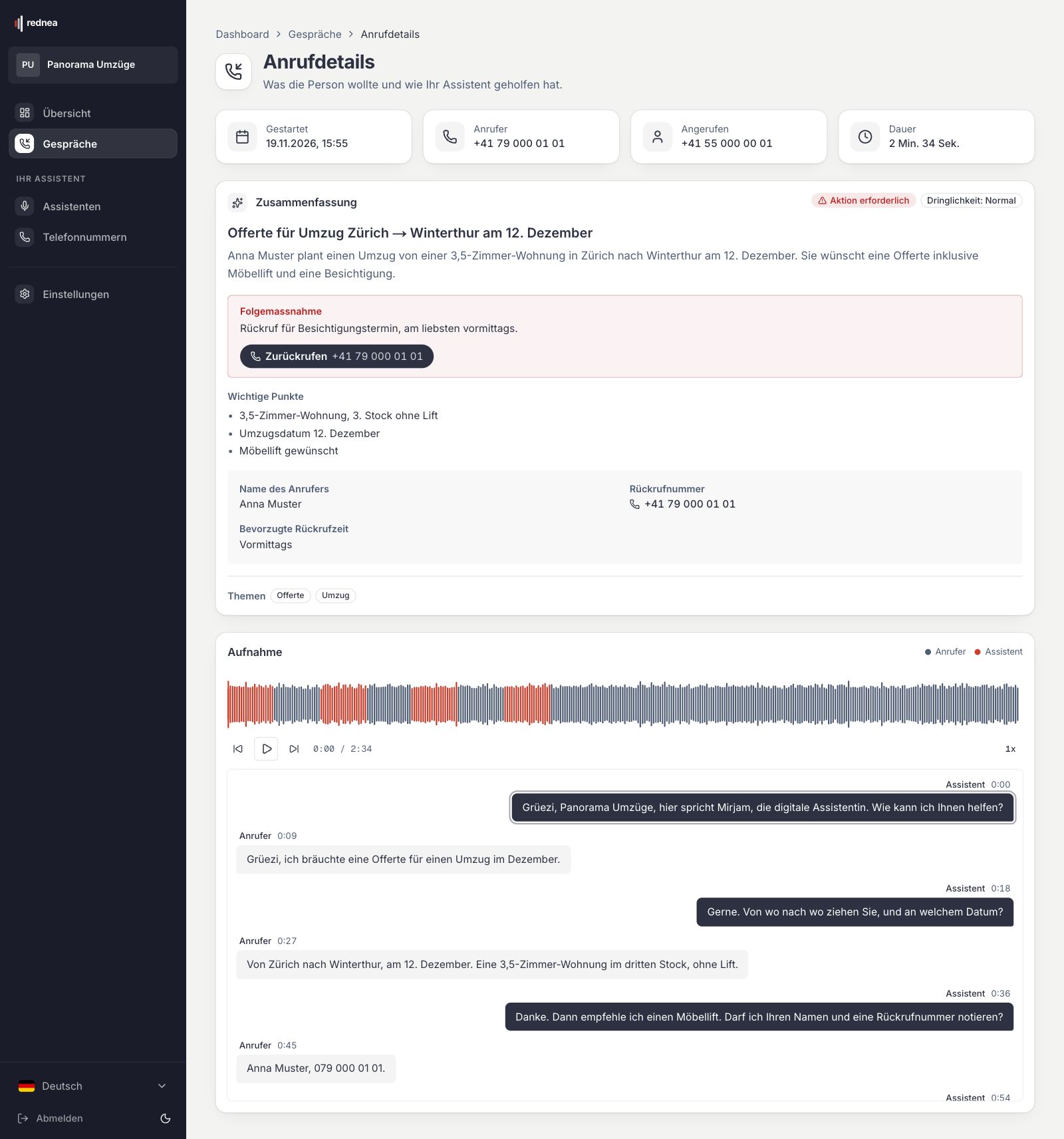
2. Listen to the recording
In the call details, start the Recording card with the play button. The transcript moves along while the recording plays.
Important: The transcript is made automatically. It can be different from what was said, for example with names, numbers or Swiss German. You hear what was really said in the recording. So always check the passage in the audio before you write to us.
If the Summary shows please check next to Callback number or Callback email, rednea is not sure that the value is correct. For example, the caller said something different from what the assistant read back, or a Swiss number does not have ten digits. If Caller said shows below it, you see what the caller said. Listen to the passage in the recording before you call back.
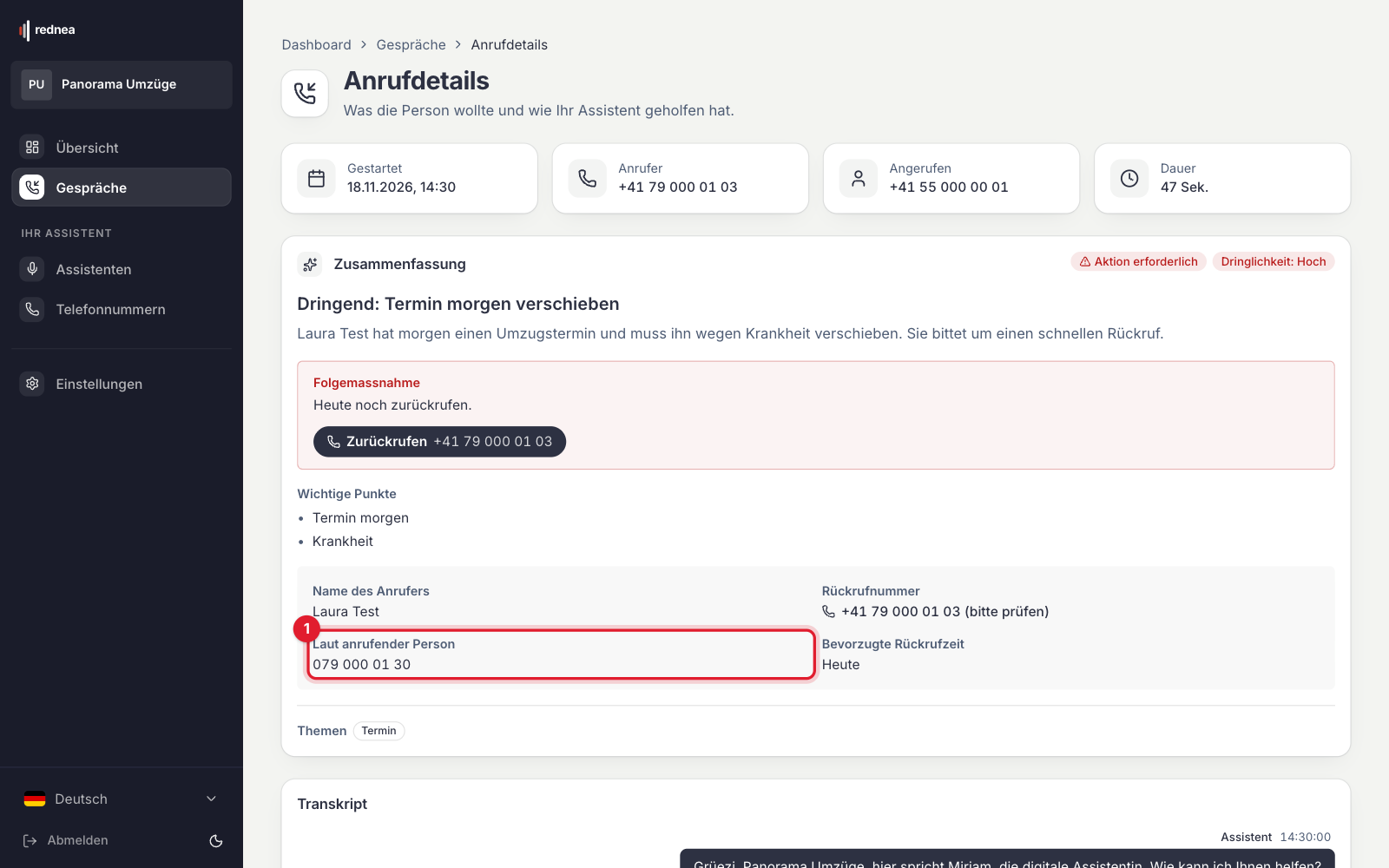
Is the recording missing? The reasons are in Invite your team, set roles and listen to calls.
3. Report the call
Write to info@rednea.ch and give us these details:
- Which call: The easiest way is to copy the address from the address bar of your browser while the call is open. You can also forward the summary email to us, or give us the date, the time and the number called.
- The caller's number, if you agree. It helps us to identify the call without doubt.
- What went wrong: for example "The assistant gave the wrong opening hours" or "It hung up before the person was finished". If possible, give the position in the recording, for example "at 1:20".
- What should have happened: for example "It should have transferred the call to Ms Muster".
The dashboard has no separate button to report a call. The email with the link is sufficient.
Common causes that you can fix yourself
| What happened | Where you fix it |
|---|---|
| The assistant does not know the address, phone number or opening hours. | Settings → Business, fill in the cards Your business, How customers reach you and Opening hours, then insert the placeholders such as {{address}} in the instructions. See Addresses, locations and opening hours. |
| The assistant asks the wrong questions or does not follow your procedures. | Assistants → open your assistant → Instructions section. See Setting up instructions for your assistant. |
| The assistant does not transfer to the right person. | Assistants → open your assistant → Phone section: check the rules and times of the targets. In the call details, the Call forwarding card shows to whom the call was transferred. See Transfer calls to a person. |
| The assistant answers too early, too late or not at all. | The call forwarding at your phone provider. See Connect your existing number. |
After a change, it is best to test it yourself: at the top of the page of your assistant, click Start test call and play the call again. If you did not save yet, the button is called Test draft. The test then uses your unsaved changes, for example to the instructions. Callers still hear the saved version. Changes to the name, phone numbers or transfers apply in the test only after you save. With Save & go live, the changes apply to all calls. Test calls in the dashboard do not count toward your minutes, see Try rednea before you start.
Frequently asked questions
The transcript shows something different from the recording. Which one is correct?
The recording. The transcript is an automatic transcription and can show some words, names or numbers incorrectly.
Can I report a call directly in the dashboard?
No. Copy the link to the call from the address bar of the browser and send it to info@rednea.ch.
The call does not show under "Conversations". What now?
First check the filters above the list, for example Date and time, Channel and, if you see it, Direction. If the call is still missing, it probably did not reach your assistant. Check the call forwarding, see Connect your existing number, and write to us with the date, the time and the number the call came from.
Who in my team can check calls?
All members, also with the Viewer role: they see calls, summaries and recordings. How to invite someone is in Invite your team, set roles and listen to calls.
Related articles
Still have questions?
Write to us — we're happy to help. Or listen to a live demo right in your browser.