Outbound calls: set up and start a campaign
Last updated 20 November 2026
Up to now, your assistant takes calls. With a Campaign, it makes calls itself: it works through a list of contacts, for example to follow up on a quote request, to confirm appointments or to invite customers to a service check.
In short: You import your contacts as a CSV file, write a Campaign Script and set when rednea may call. Then you test the campaign with your own phone and start it. rednea calls the contacts automatically, tries again if necessary and sends you a summary with the outcome for each call.
Before you start
- Get campaigns switched on. rednea support switches on outbound calls per business. Write to info@rednea.ch. Only after this do you see the Campaigns item in the left column.
- Owner or Admin role. Only Owners and Admins set up and change campaigns. With the Viewer role you see campaigns and results, but cannot change anything. More about the roles in Invite your team, set roles and listen to calls.
- A number with an assistant. rednea calls from one of your rednea numbers on which an assistant answers. When a contact calls back, this assistant answers. You see which assistant answers on which number in the left column under Phone Numbers.
- A permitted contact list. You may only call people for whom a legal basis applies (more below). Lists that are bought, rented or collected from directories or the internet are not permitted.
How a campaign works
| Step | What happens |
|---|---|
| 1. Set up | Choose the name, assistant, caller ID and language |
| 2. Write the script | Opening phrase and instructions for the calls |
| 3. Calling rules | Days and times, days without calls, number of attempts |
| 4. Import contacts | Upload a CSV file and confirm the legal basis |
| 5. Test | In the browser or with a real call to your phone |
| 6. Start | rednea calls the contacts during the calling times |
| 7. Read the results | Progress, outcomes, summaries and CSV export |
Step by step
1. Create a new campaign
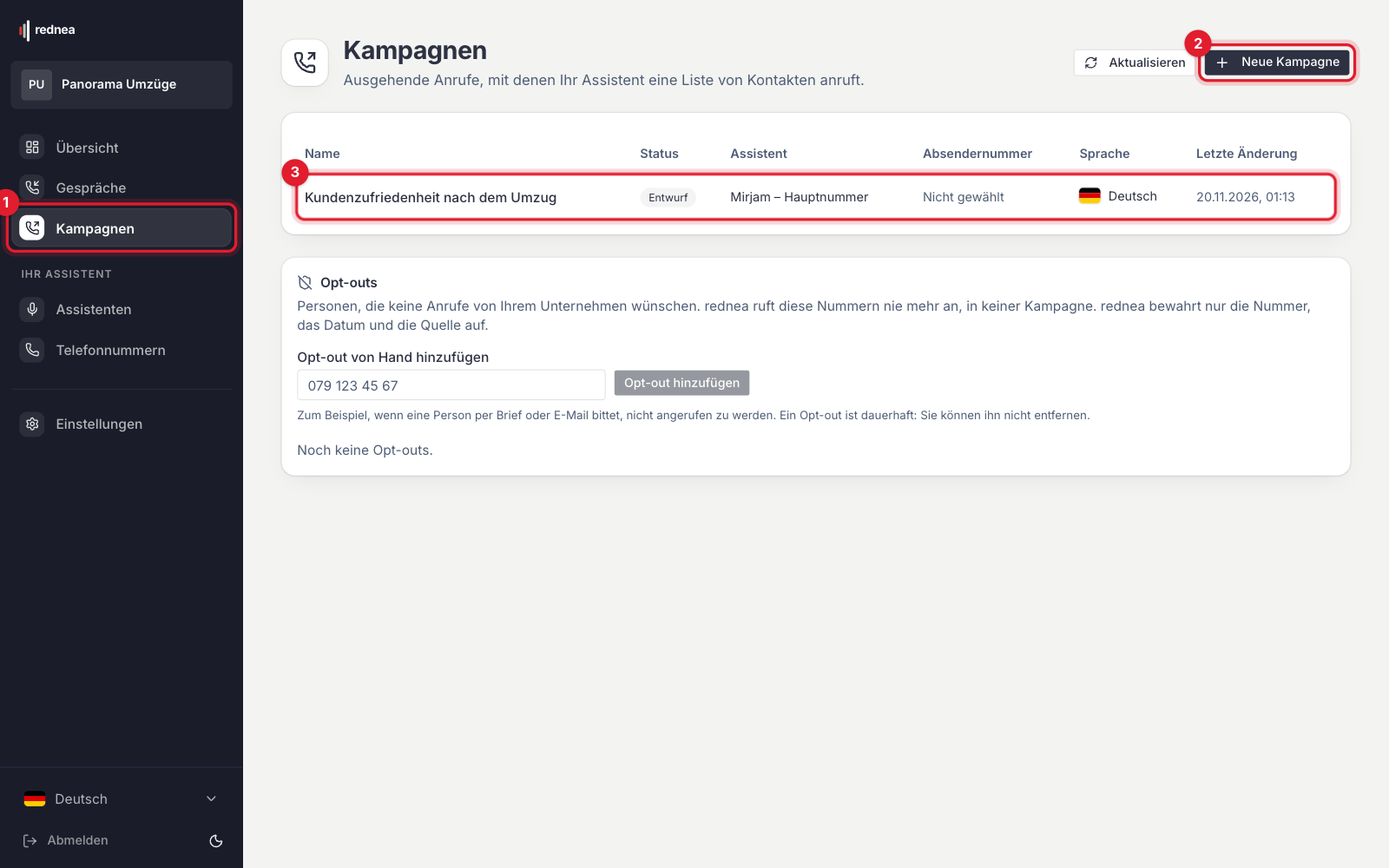
- In the left column, click Campaigns (red number 1 in the image) and then New Campaign (red number 2).
- Name and assistant: Enter a name that you recognise, for example "Quote follow-up autumn". Choose the assistant that makes the calls. It gives the calls its voice, its knowledge and its transfers. The summaries go to its recipients.
- Caller ID: Choose the number that your contacts see on their display.
- Language: Choose the language of the calls. If your contact list gives a different language for a contact, the call uses that language.
With Save and close you can stop the setup at any time. The campaign stays saved as a Draft.
2. Write the campaign script
The script sets what your assistant says and does in these calls. For the campaign, it replaces the normal instructions of the assistant. Your instructions for inbound calls stay unchanged.
- Opening phrase: rednea begins each call with the notice that an AI assistant is calling on behalf of your business. Your opening phrase follows directly after it, for example: "I am calling because you asked us for a quote for {{object}}." The opening phrase and the script must never say or suggest that a human is calling.
- Instructions: Describe the goal of the call, your offer, the questions, and what the assistant must do when the person is interested. Short and specific works best.
Placeholders make each call personal: {{contact_name}} puts in the name of the contact, and each additional column of your contact list becomes a placeholder of its own, for example {{company}} or {{object}}. Below the script, rednea shows which columns your contact list needs for this.
An example of instructions:
"You are calling {{contact_name}}. Ask if the quote for {{object}} is still current. If yes, ask if our adviser may get in touch this week, and note the best time. Be short and friendly."
If the call is recorded, the person must know this before. A note in the script shows you what you must observe for this.
3. Set the calling rules
- Calling times: Switch on the days on which rednea may call, and choose the times. The times apply in the local time of each contact.
- Legal limits: rednea calls only Monday to Friday from 08:00 to 20:00 and on Saturday from 09:00 to 16:00, never on Sundays or national public holidays. These limits always apply, also when you enter longer times.
- Days without calls: Enter for example cantonal public holidays or company holidays.
- Attempts per Contact: How often rednea calls a contact who does not answer. A busy number gets the next attempt after 30 minutes.
- Time between attempts: When nobody answers, rednea waits at least this long and then tries again in the other half of the day: in the morning instead of the afternoon, or the other way round.
- The limits of your account: Below the attempts, rednea shows the limits of your account: how many new contacts rednea calls per day at most, how many calls run at the same time, how many attempts per contact are possible and the minimum time between two attempts. The limits protect your phone number from spam marks. This is why rednea works through large lists over several days. To change them, write to info@rednea.ch.
- Summary emails: Choose if you receive an email for Every call that reaches a person, Only positive outcomes or Every call attempt.
4. Import the contacts
- Download the CSV template and enter your contacts. Name and Phone number are required. A Language column is optional. Each additional column becomes a placeholder for your script.
- In Excel, save the file with "Save As" as "CSV UTF-8". Commas and semicolons both work.
- Click Import contacts, choose the file and match the columns.
- Confirm the Legal basis, the Purpose of the calls and the Source of the data.
- Click Import contacts.
rednea checks each row. rednea skips numbers that are not valid and numbers that may not be called, and shows them to you. A file may have at most 10'000 rows. For larger lists, import more than one file, one after the other.
5. Test before rednea calls your contacts
In the last step Review and start, or later in the Test tab of the campaign, you test the campaign in two ways:
- Browser test call: You speak directly in the browser with the assistant and play the contact. Choose a contact from your list, so that the test uses the values and language of this contact.
- Call me: rednea calls your own phone from the caller ID, exactly as in a real campaign call. The first time, you verify your mobile number with a code sent by SMS. This works only with mobile numbers, not with landline numbers. The verification is valid for 12 months. The summary of this call goes to the summary recipients of the assistant. For the browser test call, rednea sends no summary.
Listen carefully to the opening phrase, the values that were put in, and how the assistant reacts to a "no". Adjust the script and test again until it is right.
6. Start the campaign
Click Start Campaign. If something is still missing, for example a script, a calling time or a contact import, rednea shows it to you. If not, rednea calls your contacts from now on during the calling times.
While the campaign runs, you can Pause it and Resume it at any time at the top right of the campaign page. To change the script or settings, first pause the campaign and then open the Settings tab. With Cancel Campaign you end it permanently. A cancelled campaign cannot start again. In both cases, calls in progress continue to the end.
You can delete a campaign that does not run: Settings tab, at the very bottom Delete Campaign. rednea deletes the campaign, its script and its contact list. Calls, opt-outs and the confirmations of the legal basis stay.
What happens during a call
- AI notice: Each call begins with the notice that an AI assistant is calling on behalf of your business.
- Voicemail: When an answering machine answers, rednea hangs up without a message and tries again later, if attempts are left.
- Opt-out: When a person says that they do not want any more calls, the assistant confirms this. rednea never calls this number again after that, in no campaign of your business.
- Callbacks: When a contact calls back the caller ID, your assistant answers and knows why it called.
- Transfer: If the assistant has transfers set up, it can also connect interested people with your team in a campaign. How to add targets is in Transfer calls to a person.
Read the results
Each call gets an Outcome: Interested, Callback requested, Not interested, Opted out or Wrong person. The outcome comes from the automatic summary of the call. Check important cases in the summary or in the recording.
The campaign page has these tabs:
- Overview: the figures Contacts, Reached, Positive outcomes, Opted out, Waiting and Not reachable, plus the progress and the next call.
- Contacts: each contact with status, outcome, number of attempts and a link to the call. With Export CSV you download all results for Excel or your CRM.
- Activity: each call attempt, the newest first.
- Settings: setup, script and calling rules. You can change them only while the campaign is a draft or paused.
- Test: the Browser test call and Call me. Only Owners and Admins see this tab.
You also find the calls themselves in the left column under Conversations. There, set the Direction filter to Outbound. See also A call went wrong? How to report it to us.
The legal side in brief
Strict rules apply in Switzerland to calls with an AI assistant. You are responsible for making sure that each call is permitted. rednea helps you with this:
- Legal basis per import: With each import, you confirm one of these bases: Prior consent, Request from an existing customer, Request and directory entry without asterisk or Service call without advertising. rednea keeps this confirmation as proof, for at least 3 years after the last call.
- Directory entry for advertising calls: For advertising calls, your caller ID must be listed in the public directory in your name, for example on local.ch or search.ch (UWG Art. 3 para. 1 let. v). You make this entry yourself.
- No cold calling: Address lists that are bought, rented or collected are not permitted.
- Opt-outs: Opt-outs are permanent. If someone asks you by letter or email not to be called any more, enter the number by hand on the Campaigns page under Opt-Outs.
The exact conditions are in our Terms (AGB), section 4.5. This overview is not legal advice.
What this means for your minutes
Answered campaign calls count toward the same minutes as your incoming calls. Attempts that nobody answers do not count. When the minutes of the month are used up, rednea pauses the campaign automatically and informs the owners and admins by e-mail. More in Pricing & minutes.
The campaign is paused, but I did nothing
rednea pauses a campaign automatically in these cases and informs the Owners and Admins by email. You see the reason on the campaign page.
| Reason | What you do |
|---|---|
| The minutes of the month are used up. | You can resume the campaign when more minutes are available, or in the next month. See Pricing & minutes. |
| The subscription is not active. | Check your subscription, see Invoices, payment and subscription status. |
| The caller ID no longer answers with an assistant. | In the Settings tab, choose a caller ID with an assistant and then resume the campaign. |
| The phone provider refused the calls. | rednea support checks the connection. You do not have to do anything. |
If the campaign page shows "Automatic calls are not switched on for this business yet", rednea support switches them on. Write to info@rednea.ch.
Frequently asked questions
Can I also start a campaign on a Sunday?
Yes, you can start it at any time. But the calls begin only in the next allowed calling time, for example on Monday at 08:00. rednea never calls on Sundays and national public holidays.
Can I add contacts while a campaign runs?
Yes. New contacts get their first call in the next calling time. If the campaign is paused, they get it when you resume the campaign. You cannot import contacts into a completed or cancelled campaign.
Why does rednea not call all contacts on the first day?
Because of the limits of your account, rednea calls only a given number of new contacts per day. The number is shown under the calling rules of the campaign. More attempts with contacts who did not answer do not count for this.
What happens when a contact is in two campaigns?
At the import, rednea asks you if both campaigns may call the contact. Between calls from different campaigns there are always at least 7 days.
Does the assistant also speak Swiss German?
Yes. The assistant speaks in the campaign language, or in the language that your contact list gives for the contact.
I want to start a large campaign. What must I consider?
Write to us before at info@rednea.ch and tell us how many contacts you want to call. We check the script, the legal basis and the planning with you.
Related articles
Still have questions?
Write to us — we're happy to help. Or listen to a live demo right in your browser.