Invite your team, set roles and listen to calls
Last updated 20 November 2026
Practices and businesses often ask us: "Does each employee need their own login?" and "Which code do I use to listen to the calls?" Here are the answers.
In short: Each person has their own login with their own email address and password. An Owner or Admin invites them under Settings → Team. You find the recordings and transcripts in the dashboard under Conversations: click the call, play it. There is no code for a voicemail box. Who receives the email summaries is a separate setting. It does not depend on access to the dashboard.
Invite a team member
Only people with the Owner or Admin role can do this.
- Log in to the rednea dashboard and click Settings in the left column.
- At the top, in the row of tabs, choose Team.
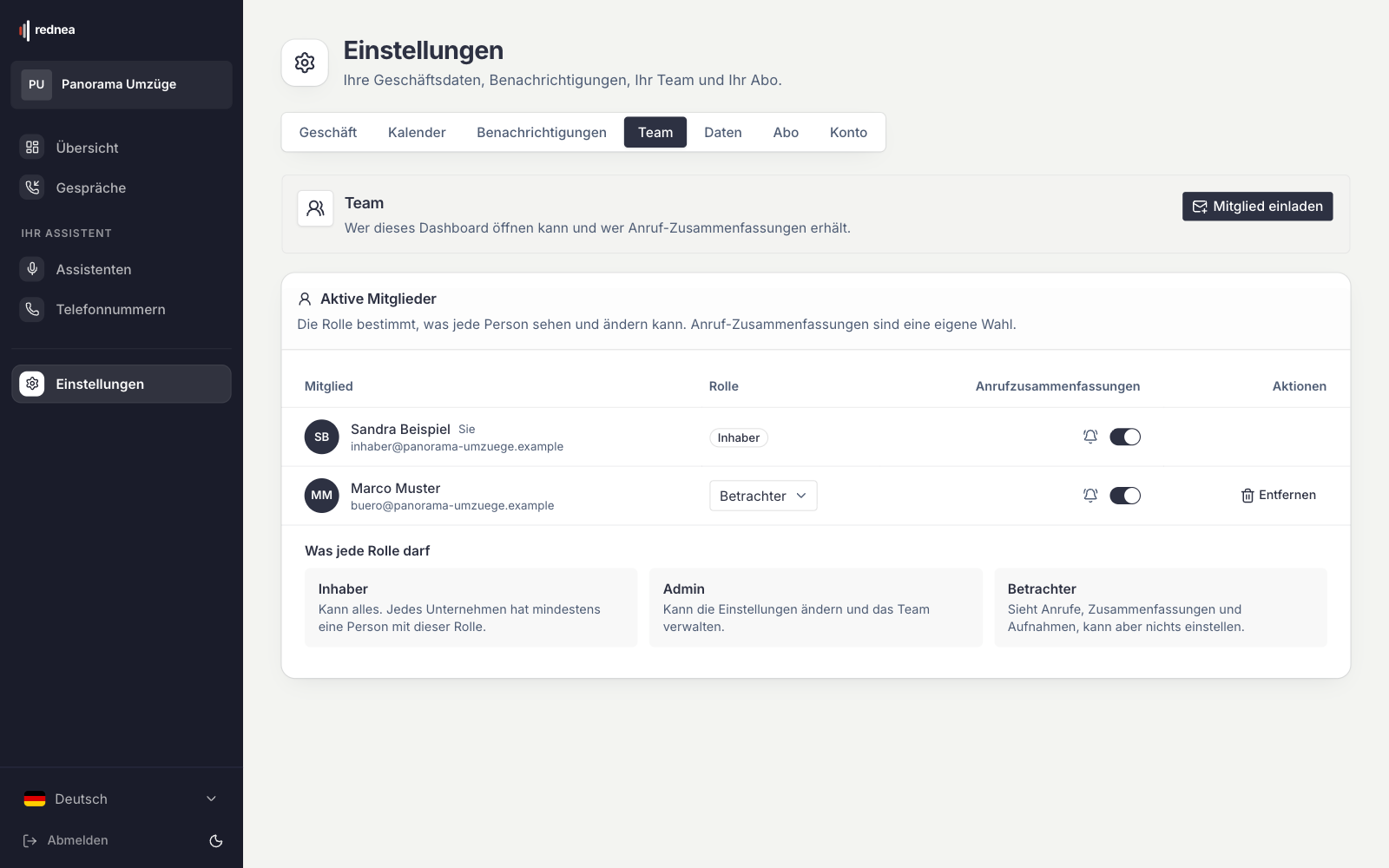
- At the top right of the "Team" box, click Invite Member.
- Enter the Email address of the person and choose the Role: Viewer or Admin.
- Keep Receive call summaries switched on if the person must receive the email after each call. If not, switch it off.
- Click Send invitation.
The person receives an email with the button Accept invitation. The link is valid for seven days and only once. The person enters their name and a password with at least 8 characters and clicks Create account and join.
Has the link expired? Under Pending invitations, click Resend. The person receives a new link, which is again valid for seven days. With Revoke you withdraw an invitation.
The person already has a rednea account? Then the window shows: "This email already belongs to a rednea account. Contact support for help." In this case, write to us at info@rednea.ch, with the email address and the role you want.
What each role can do
| Role | What the person can do |
|---|---|
| Owner | Can do everything. Each business has at least one person with this role. |
| Admin | Can change the settings and manage the team: invite, change roles, remove. Sets up, for example, the transfer to a person. |
| Viewer | Sees calls, summaries and recordings, but cannot change settings. In the menu, a Viewer sees only Overview, Conversations, Subscription and Account. If rednea has switched on outbound calls for your business, the Viewer also sees Campaigns, without the ability to change anything (see Outbound calls). |
You change the role in the Active Members list, in the Role column. You cannot change the role of the Owner or your own role there. With Remove in the Actions column, the person loses access to your business immediately. Their rednea account stays.
Listen to calls: where the recordings are
There is no voicemail box and no code. All calls are in your dashboard, and you open them with your own login:
- Log in to the rednea dashboard.
- In the left column, click Conversations.
- Click the call that you want to listen to.
- In the Call Details you see the Summary and the Recording card with the play button. The transcript moves along while the recording plays. For some calls, the Transcript and the Recordings (caller audio, assistant audio) are in separate cards.
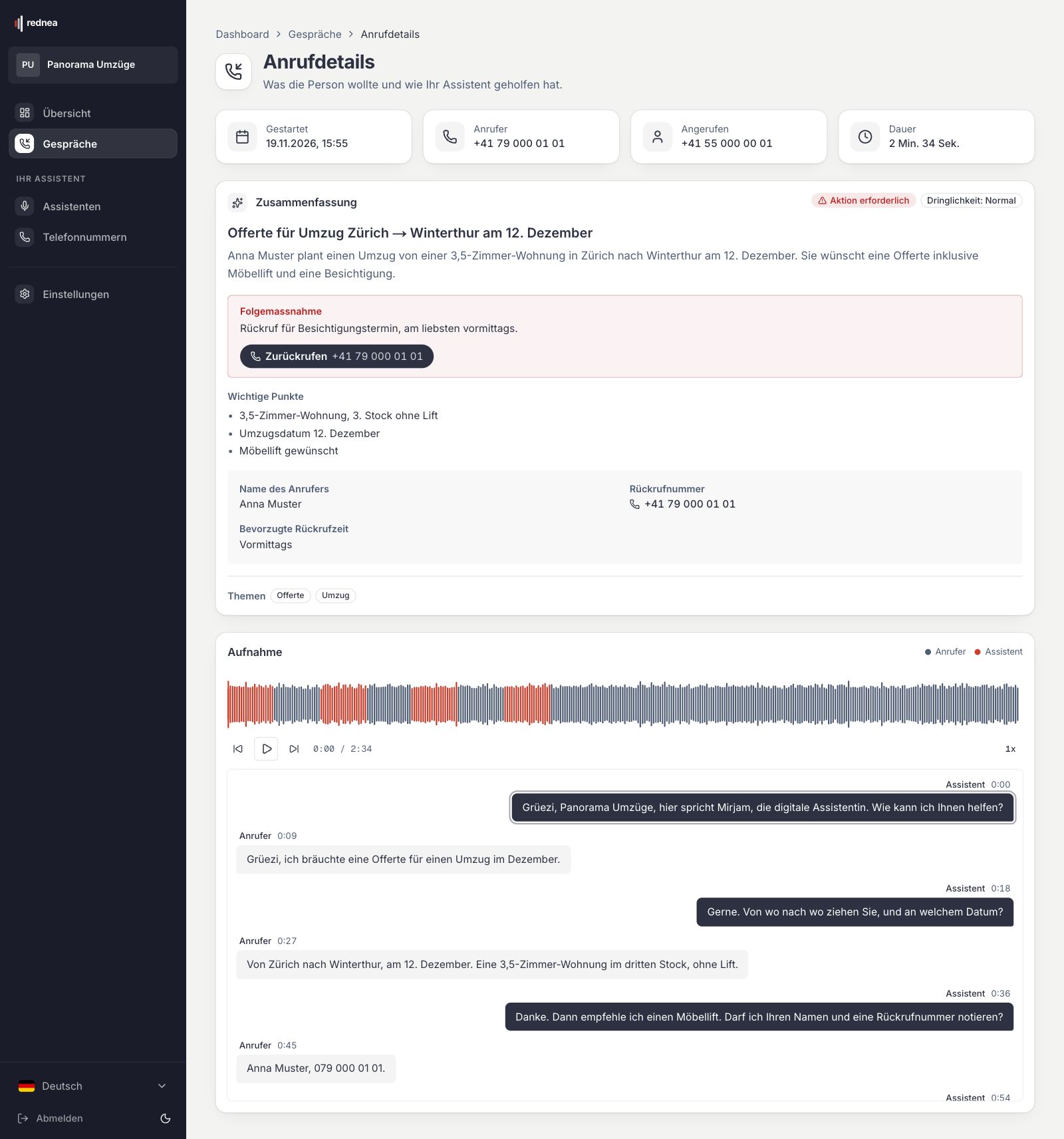
Quick way: In each email summary, the button at the end of the email, View the full call, takes you directly to this call (for very short calls: View the call). For this, you must be logged in to the dashboard.
Did something go wrong in a call? How to check it and report it to us is in A call went wrong? How to report it to us.
No recording to see?
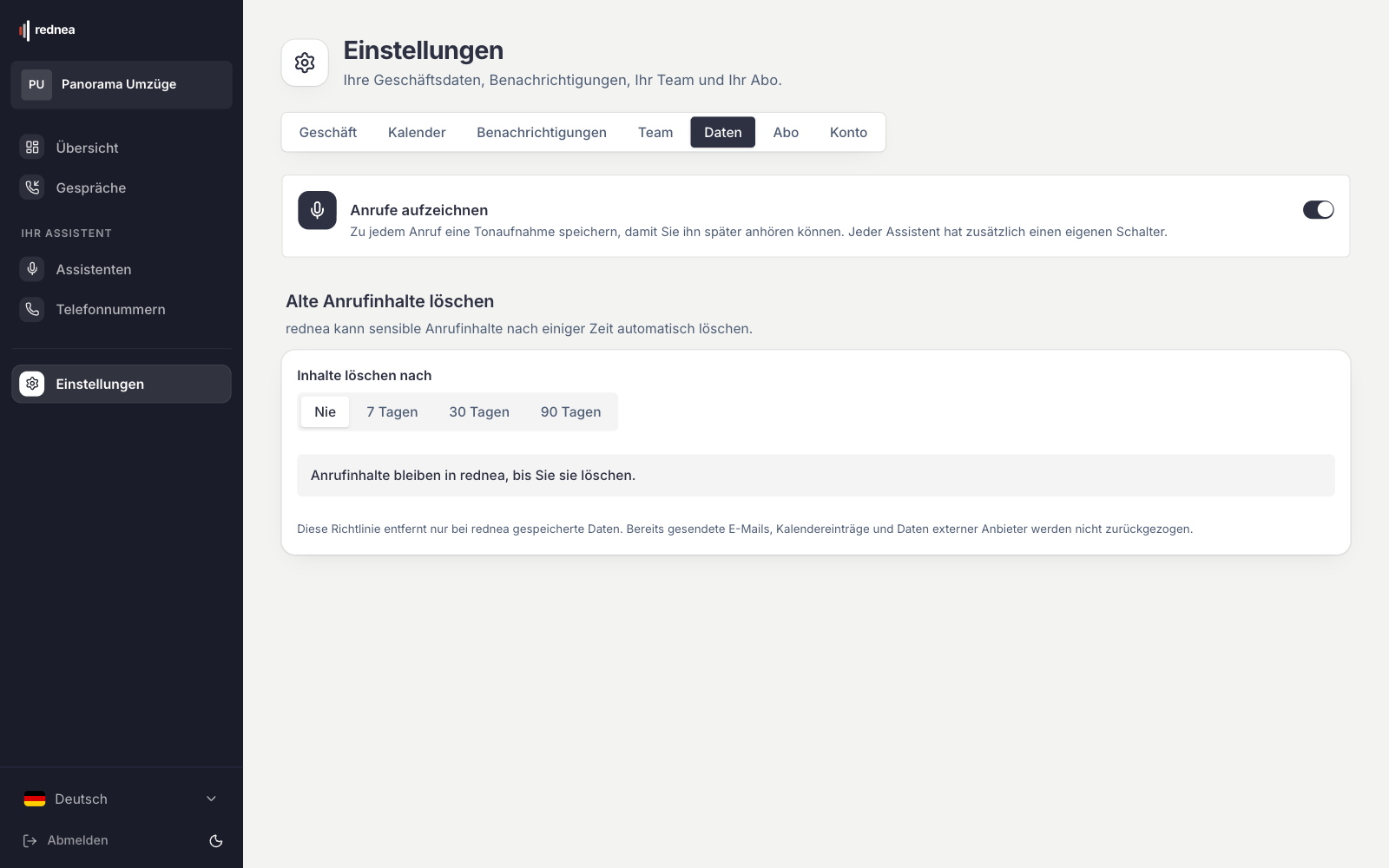
- Recording is switched off. Under Settings → Data is the Record calls switch. When it is off, rednea does not store an audio recording. Each team member with the Owner or Admin role can switch it on or off.
- The recording was deleted automatically. Under Settings → Data → Delete old call content you set if content is deleted after 7, 30 or 90 days, or never. The call then shows for example: "Recording deleted on … under your retention policy." Deleted content cannot be restored.
- The switch is on and the recording is still missing? Write to us at info@rednea.ch and give the date and time of the call.
Only Owners and Admins see the Data tab.
Who receives the email summaries
The email summary is separate from dashboard access. An address can receive summaries without an account, and a team member can have access without receiving summaries.
- For the whole business: Settings → Notifications, Email summary area. Under From your team are all members whose Call summaries switch is on in the Team tab. Under Other email addresses you enter up to 5 addresses outside your team, for example a shared mailbox.
- For one assistant: In the left column, click Assistants, open the assistant and choose the Notifications section. Under Who gets it, choose Same people as in Notifications or Only specific people (up to 5 addresses). With the second choice, only these addresses receive the summaries of this assistant.
Frequently asked questions
Is it normal that each receptionist needs their own login?
Yes. Each person logs in with their own email address. So you see in the Team tab who has access, and you can remove access for one person without a change for the others.
Is there a code to listen to the rednea voicemail box?
No. You listen to the calls in the dashboard under Conversations, or with the View the full call button in the email summary.
We cancelled and still receive emails about calls. Why?
Your assistant takes calls until the end of the paid period, and for each call a summary goes to the addresses you entered. These addresses do not need dashboard access. If you do not want emails any more, an Owner or Admin switches off the Email summary under Settings → Notifications, or removes only the address in question. You can also cancel the call forwarding at your phone provider, see Connect your existing number. If you cannot get into the dashboard any more, write to us at info@rednea.ch. More about cancelling: Cancel your subscription.
I cannot log in any more. What can I do?
On the login page, click Forgot password?. If that does not help, an Owner or Admin checks in the Team tab if you are still in the Active Members list. If you were removed, your rednea account stays, and a new invitation to the same address is not possible through the dashboard. Then write to info@rednea.ch.
Does a removed person still receive summaries?
Not through the team. If their address is also under Other email addresses, or under Only specific people for an assistant, remove it there too.
Related articles
Still have questions?
Write to us — we're happy to help. Or listen to a live demo right in your browser.