Addresses, locations and opening hours: what your assistant must know
Last updated 20 November 2026
"Where can I find you?" and "When are you open?" are among the most frequent questions on the phone. Your assistant answers them correctly only when it knows the details. When a detail is missing, an AI can give an answer that sounds right but is wrong, for example a branch that does not exist.
In short: Enter your address, phone and opening hours under Settings → Business tab. Then insert these details in the Instructions of your assistant, with the buttons under Insert a detail. Without this step, your assistant does not know the details. Write several locations, or different hours per service, as text in the instructions, together with the rule: do not invent anything, offer a callback. Check everything with Test draft before you click Save & go live.
Step 1: Enter the details in the Business tab
- In the left column of the dashboard, click Settings, and at the top of the page click the Business tab («Geschäft», see 1 in the image).
- Fill in the three cards:
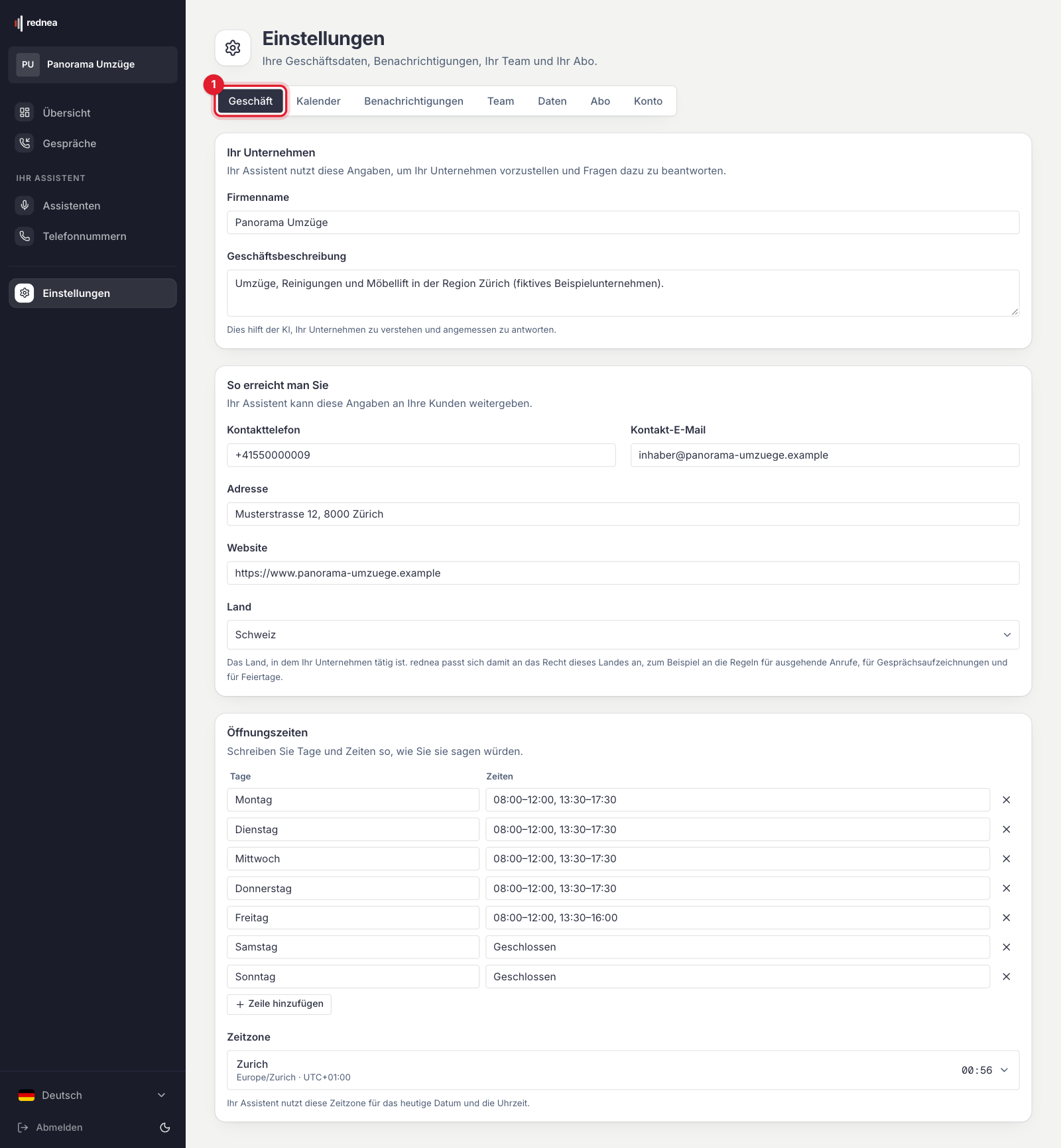
| Card | Fields | Placeholder in the instructions |
|---|---|---|
| Your business | Business Name, Business Description | {{business_name}}, {{description}} |
| How customers reach you | Contact Phone, Contact Email, Address, Website | {{phone}}, {{email}}, {{address}}, {{website}} |
| Opening hours | lines with Days and Hours, below them Timezone | {{opening_hours}}; the time zone applies to {{day_of_week}}, {{current_date}}, {{current_time}} |
- At the bottom of the screen, the bar "You have unsaved changes." appears. Click Save Changes in it.
Write the opening hours the way you would say them, for example Days "Mon–Fri" and Hours "08:00–12:00, 13:30–18:00". With Add a line you also enter closed days ("Sat–Sun", "closed"), so your assistant does not have to guess. For Switzerland, the Timezone is Europe/Zurich.
The Address field holds one address. Enter the one that callers need most often, usually the place your customers come to.
Step 2: Insert the details in the instructions
Your assistant does not read the business profile by itself. It knows a detail only when the detail is in its instructions: as a placeholder such as {{address}} or as normal text.
- In the left column, click Assistants, then your assistant, and in the row of tabs click Instructions.
- In the field Instructions for your assistant, put the cursor at the right place.
- Below the field, next to Insert a detail, click for example Address or Opening hours. rednea inserts the placeholder. In the call, your assistant uses the real value.
- Test the change with Test draft (see below), then click Save & go live, at the top right or in the bar at the bottom of the screen.
For example: "Our address: {{address}}. Our opening hours: {{opening_hours}}. Answer questions about our location and opening hours only with these details." When you later change the hours in the Business tab, the change applies from the next call.
Step 3: Several locations or different hours
The business profile has one address and one list of opening hours. Write more as text in the instructions, with a clear structure:
"Practice Centre, Bahnhofstrasse 1, 8001 Zurich: all treatments take place here. Administration, Seestrasse 5, 8002 Zurich: office only. Opening hours of the practice: Mon–Fri 07:30–19:00. Phone hours of the reception: Mon–Fri 08:00–12:00. When someone asks where the appointment takes place, give the address of the practice. When someone asks for the opening hours, first find out if they mean the practice or the reception."
This prevents two errors we saw in real calls: the office address instead of the treatment location, and the hours of the customer service instead of the opening hours of the practice.
If you have one assistant per location, write the address of that location as text in its instructions. {{address}} contains the same address for all assistants.
Optional: the Knowledge area
Some accounts also show Knowledge in the left column. There you store longer details, for example all locations with directions and parking. If you do not see this entry, use the instructions as in step 3.
- Click Knowledge and then New document.
- Enter a Title and choose the Content source: Text, File (PDF, DOCX, TXT or Markdown, 15 MB at most) or Website (import selected pages).
- Click Continue. Under Knowledge authority, choose Authoritative (has priority when details contradict each other) or Supplemental.
- Click Continue. Under Assistant use, choose Caller-answerable, so that your assistant may tell callers the content. Click Create document.
- On the document, click Publish draft, then Manage assignments, choose the assistant and click Save assignments.
Your assistant uses only published documents that are assigned to it. In the Knowledge Tester card on the same page, you can ask a test question first. The full guide is in Set up the knowledge library.
One clear rule: do not invent anything
We recommend that you write in the instructions what your assistant does when it does not know something:
"When you do not know an address, an opening time or a price, do not invent anything. Say that you are not sure, and offer a callback from the team. Take down the name and callback number for this."
Check with a test call
Open your assistant. At the top of the page is the Test Call panel:
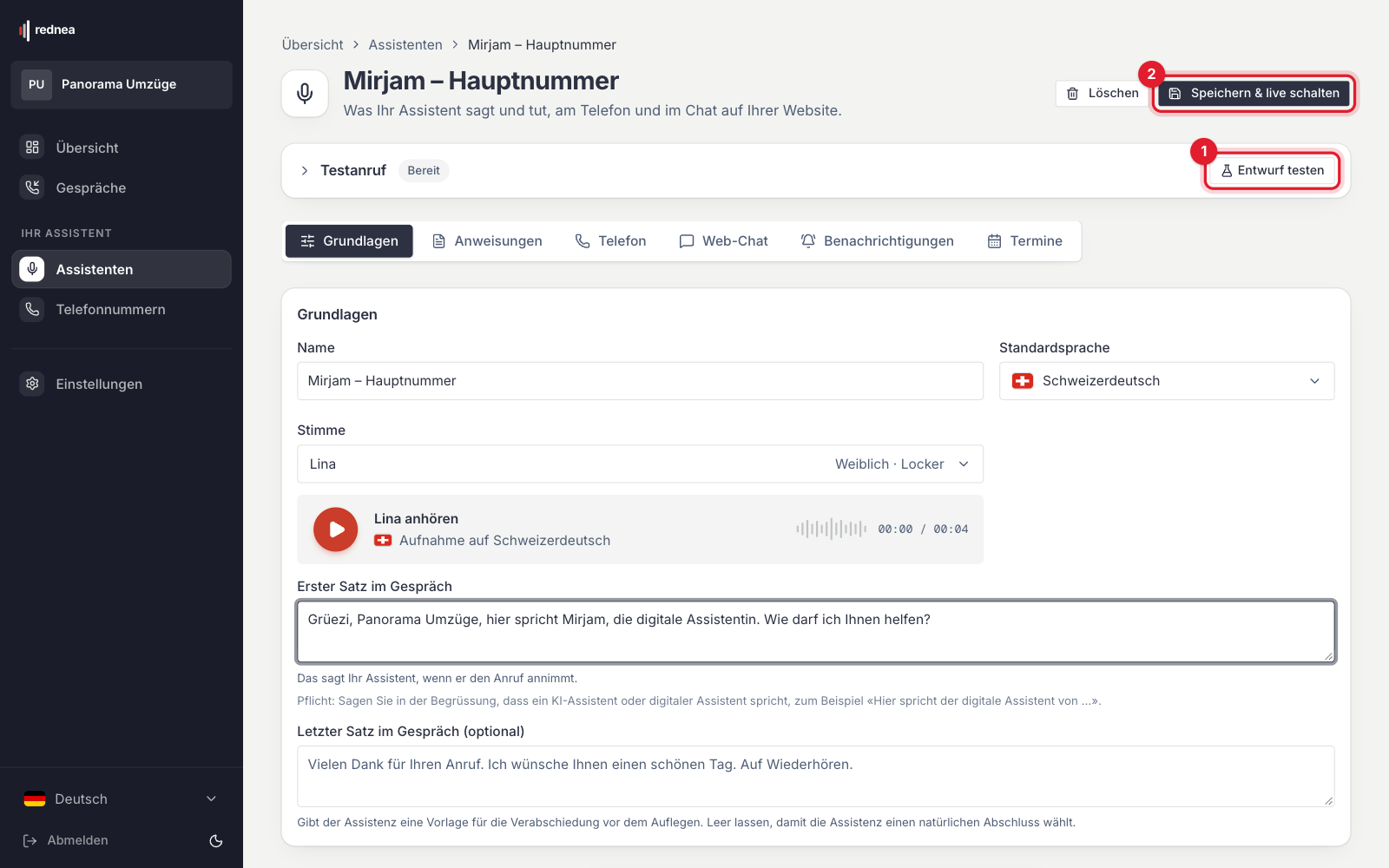
- If you changed the instructions and did not save them yet, click Test draft (see 1 in the image). The test uses your changes and shows Draft (not live). Callers still hear the saved version.
- If everything is saved, click Start test call. The test shows Saved version (live).
The test call uses the details from the Business tab as soon as you saved them there with Save Changes. Test calls do not count toward your minutes. Ask for example: "Where can I find you?", "Are you open on Saturday?", "Where does my appointment take place?". Also ask for a branch that does not exist: your assistant must offer a callback and not invent an address. When everything is correct, click Save & go live (2).
If a detail in a real call was wrong, read A call went wrong? How to report it to us. We answer questions at info@rednea.ch.
Frequently asked questions
The address is in the settings. Why does the assistant not know it?
Probably the placeholder {{address}} is missing in the instructions. Insert it in the Instructions tab with Insert a detail → Address. See Setting up instructions for your assistant.
Must I change the instructions when my opening hours change?
Not if you use {{opening_hours}}. Then you change the hours only in the Business tab. If the hours are written as text in the instructions, change them there.
Does the assistant answer only during the opening hours?
No. The opening hours in the Business tab are information for callers. When calls come to your assistant is set by the call forwarding, see When does the assistant answer?. The transfer to a person also does not follow the opening hours. For this, each transfer target in the Phone tab has the setting Forward only at set times, see Transfer calls to a person.
How do I handle public holidays and company holidays?
Write the dates in the instructions, for example "From 22 December to 4 January the practice is closed.", and insert Today’s date, so that your assistant knows which day it is today. Remove the note afterwards.
Related articles
Still have questions?
Write to us — we're happy to help. Or listen to a live demo right in your browser.