The dashboard at a glance: where to find what
Last updated 20 November 2026
Looking for a setting in the dashboard? This article shows every area, says in two or three sentences what you do there, and links the detailed guide. The screenshots show the German dashboard; the German label is given in brackets.
In short: The left column holds Overview, Conversations, Assistants, Phone Numbers and Settings. You read and listen to calls under Conversations. How your assistant speaks and what it does is set under Assistants. Business details, notifications, team, recordings and subscription are under Settings. You see Knowledge, Serviceability and Campaigns only when rednea has switched them on for your business.
The left column
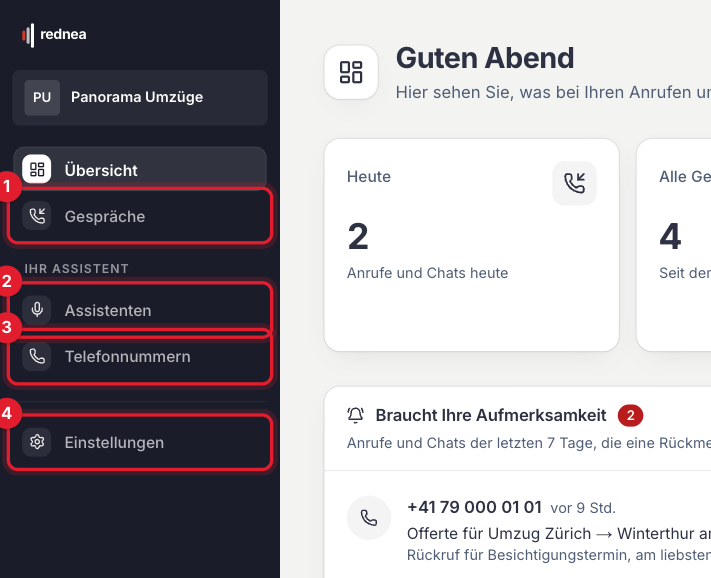
At the top is Overview, below it Conversations (see 1 in the image). Under "Your assistant" follow Assistants (2) and Phone Numbers (3), and at the bottom Settings (4). At the very bottom of the column you change the language of the dashboard and log out with Sign out.
Overview: what matters right now
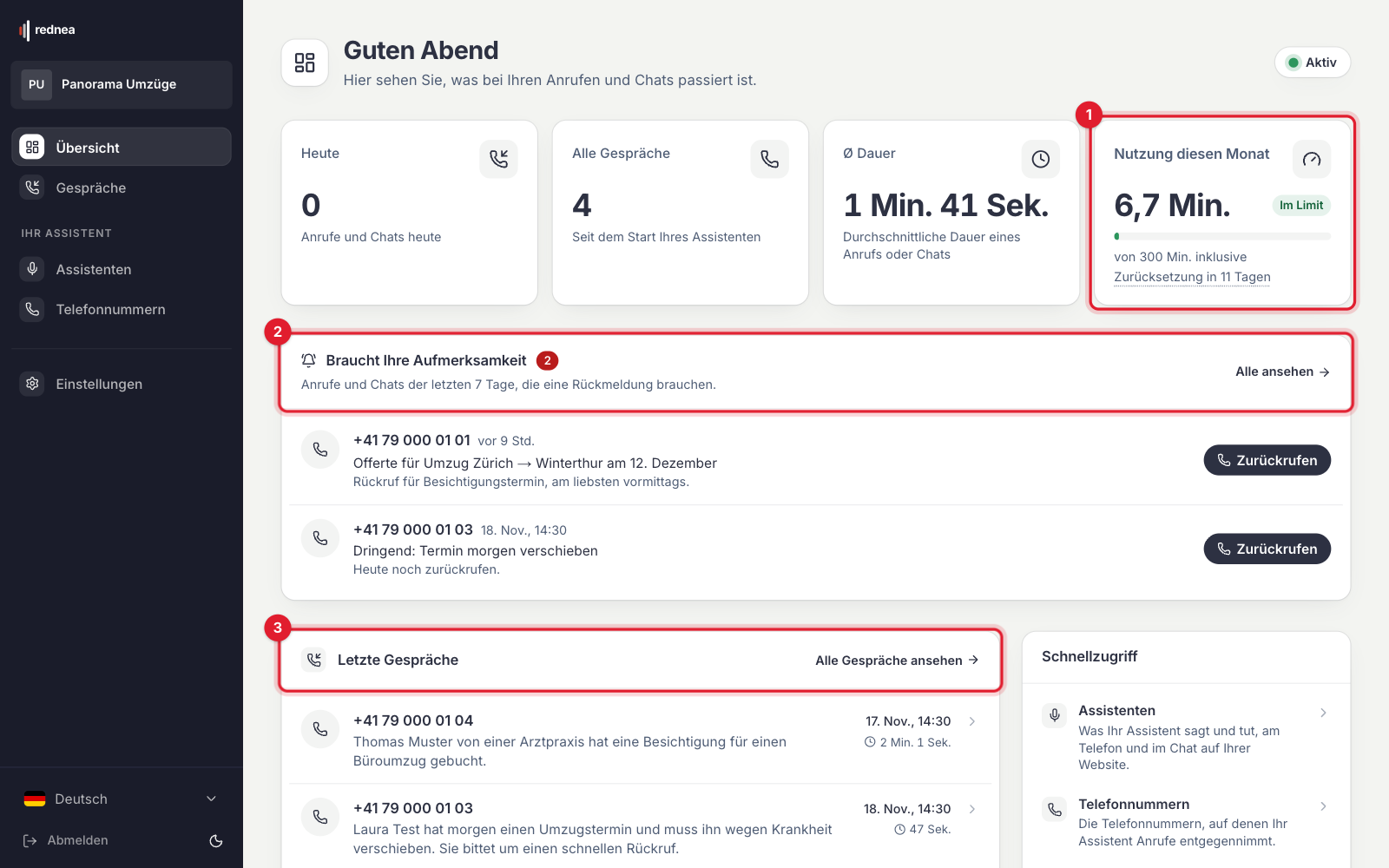
The Overview shows your calls, chats and minutes at a glance: today's conversations, all conversations, the average duration and Usage this month («Nutzung diesen Monat», see 1 in the image). Needs your attention («Braucht Ihre Aufmerksamkeit», 2) lists the calls of the last seven days that need a reply. With Call back («Zurückrufen») you call back directly. Latest conversations («Letzte Gespräche», 3) shows the newest calls.
How minutes are counted and when you are warned is explained in Pricing & minutes.
Conversations: every call with a summary
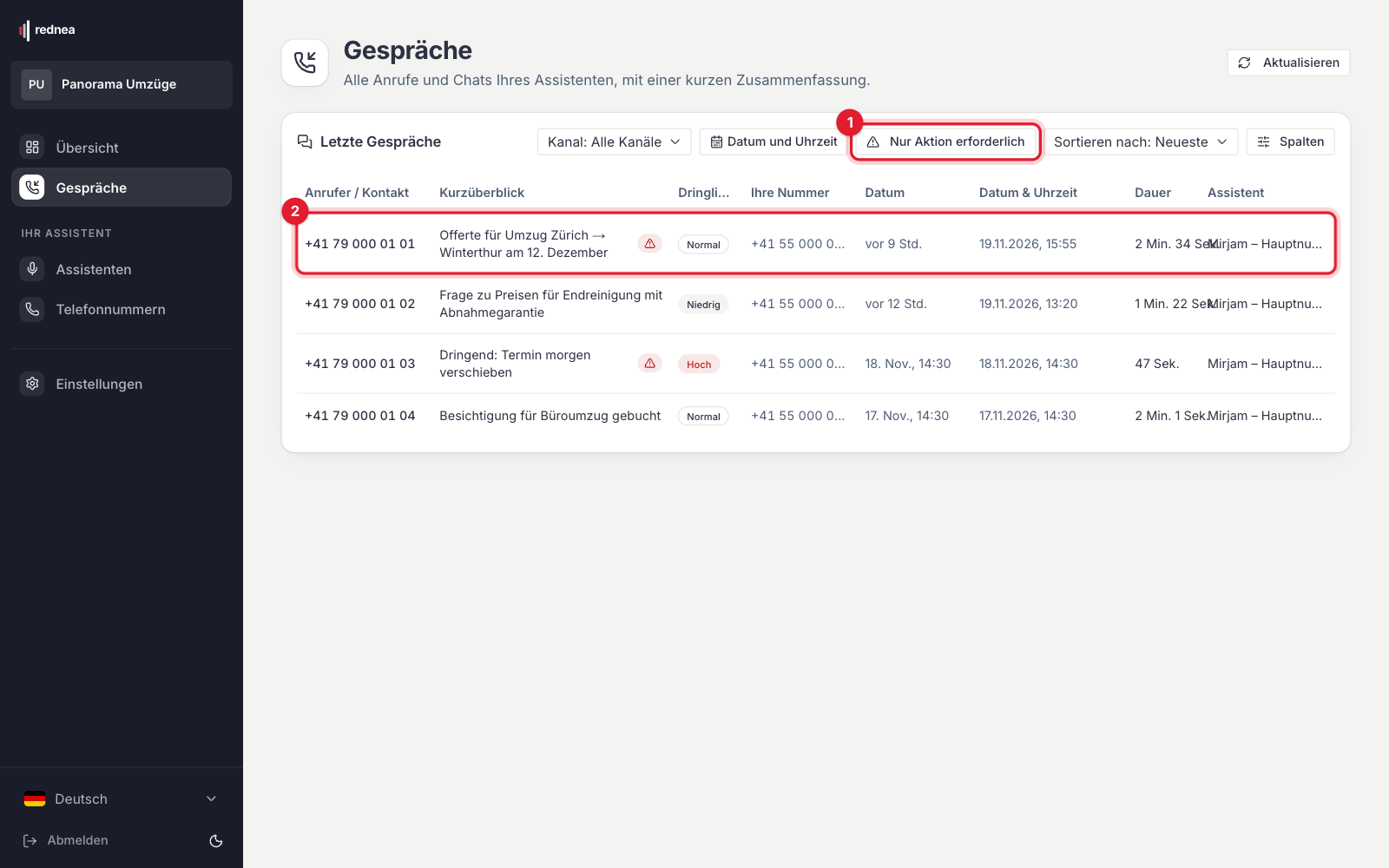
Conversations lists every call and chat of your assistant. With Only needs attention («Nur Aktion erforderlich», see 1 in the image) you see only the calls where you must do something. Each row (2) shows Headline, Urgency, date, Duration and Assistant. Click a row to open the Call Details with the summary, transcript and recording.
What the summary contains and what "please check" means is explained in How the assistant answers calls.
Assistants: what your assistant says and does
Under Assistants you see your assistants. Click one. At the top is the Test Call panel, below it the tabs:
- Basics: Name, Default Language («Standardsprache», see 1 in the image), Voice («Stimme», 2) and First sentence of the call («Erster Satz im Gespräch», 3). See Set the language of your assistant, Does the assistant understand Swiss German? and Choosing the right voice.
- Instructions: what your assistant should do and what not. See Setting up instructions for your assistant.
- Phone: on which numbers the assistant answers and whether it transfers to a person. See Transfer calls to a person.
- Web chat: how the assistant works in the chat on your website.
- Notifications: own recipients and subject line of the summaries for this assistant.
- Appointments: under Bookable appointment types, which appointments the assistant may book. See Connect your calendar to rednea.
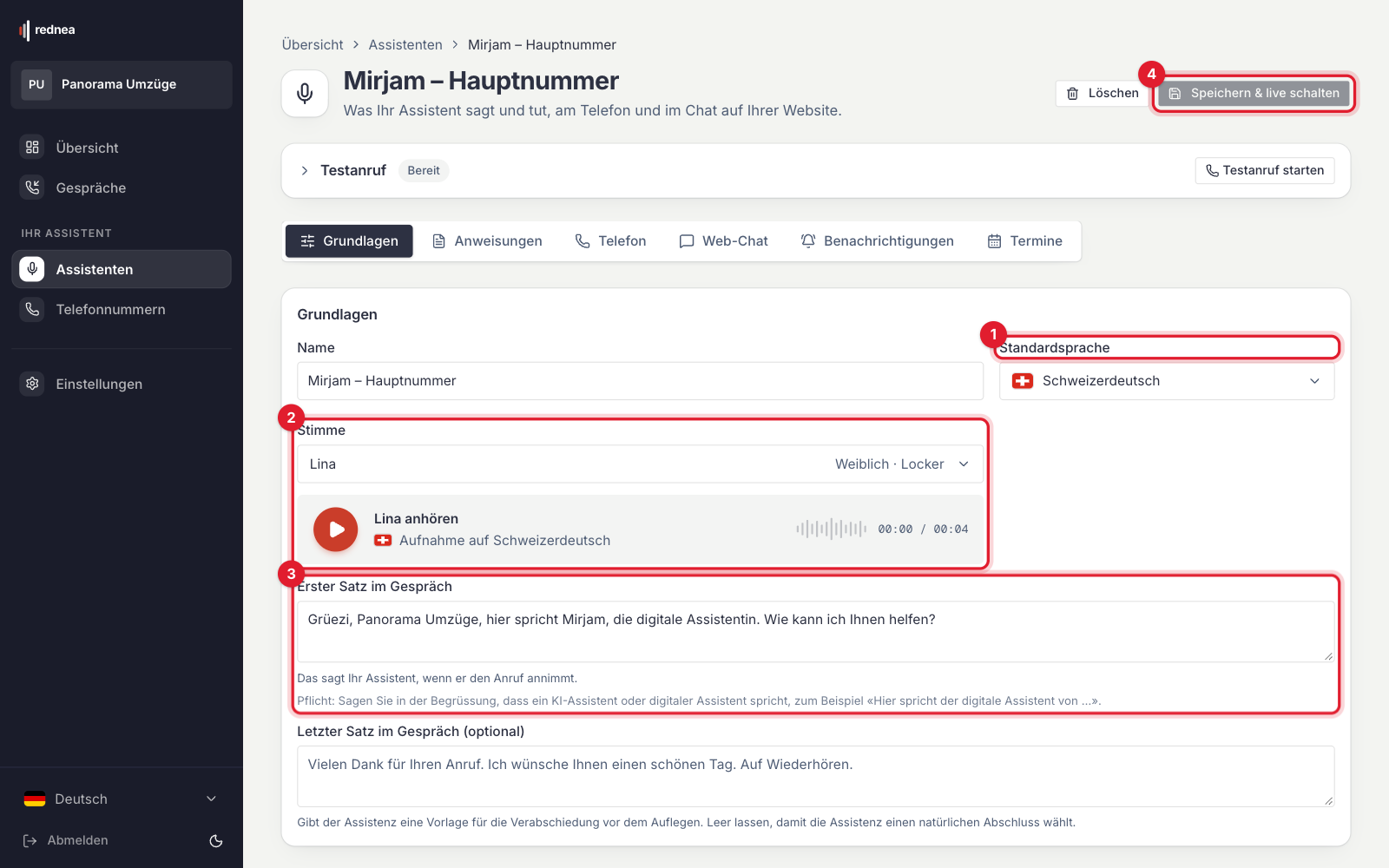
Test a change first with Test draft. Callers hear it only after you click Save & go live (4). See Try rednea before you start.
Phone Numbers: where your assistant answers
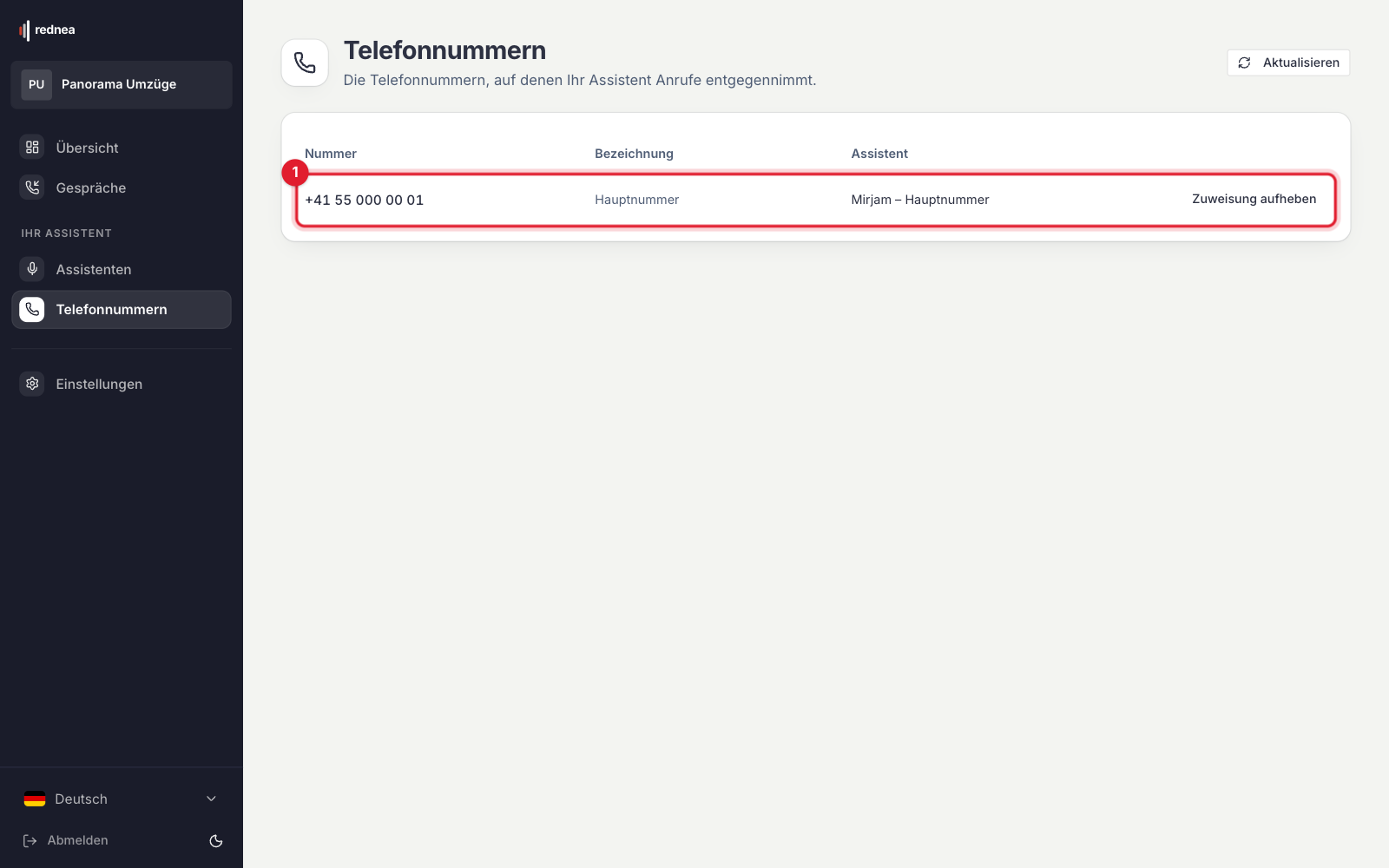
Phone Numbers lists your rednea numbers with Label and the Assistant that answers there (see 1 in the image). You enter this number in the call forwarding of your existing number. See Connect your existing number to rednea and When does the assistant answer?.
You get an additional number through info@rednea.ch.
Settings: your business, your team, your subscription
Settings is split into tabs:
- Business: business name, address, opening hours and time zone. See Addresses, locations and opening hours.
- Calendar: the connection to your calendar. See Connect your calendar to rednea.
- Notifications: email summary, other recipients, SMS and the warning when your minutes run low.
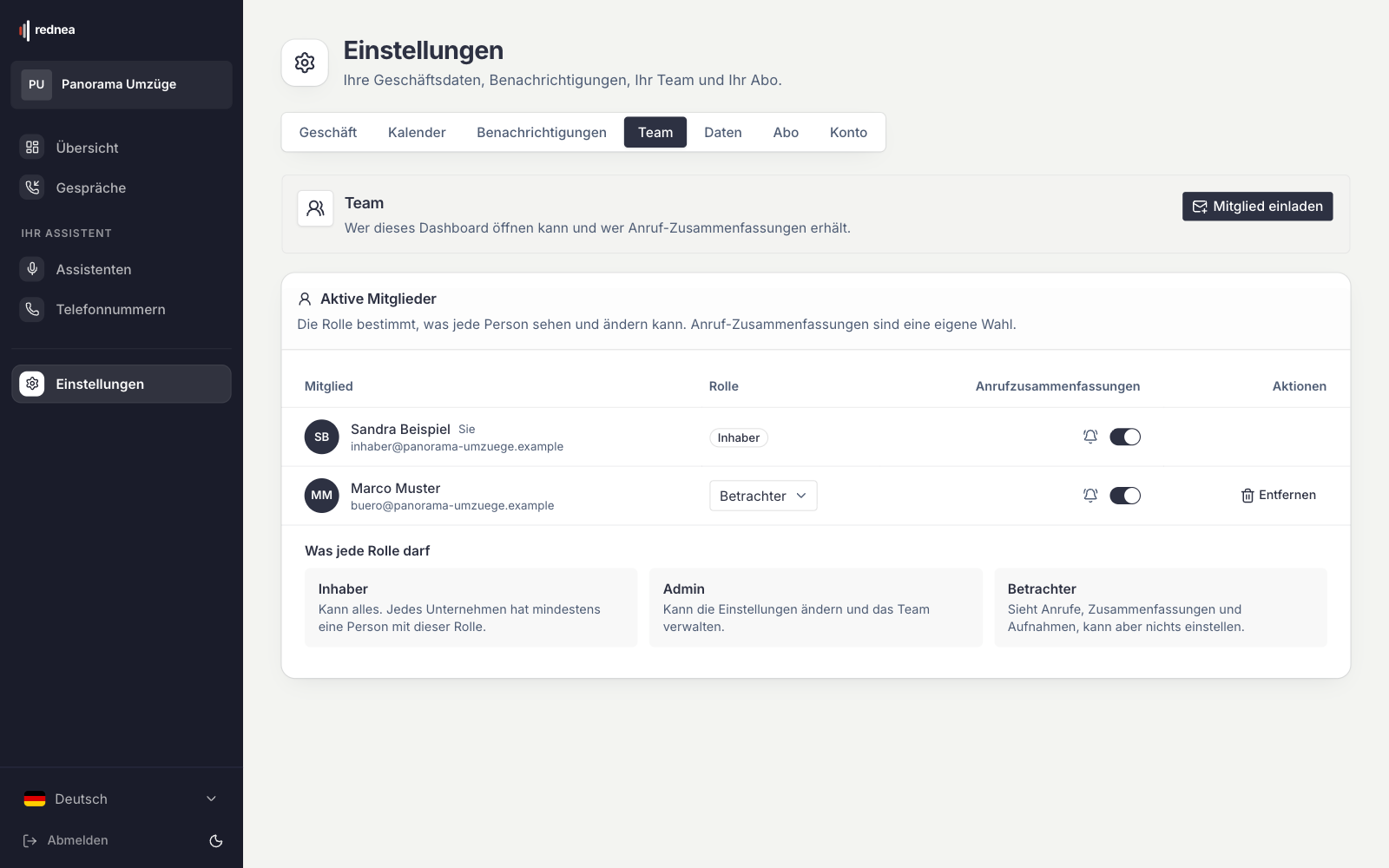
- Team: who may open the dashboard, with which role, and who receives the summaries. Invite a person with Invite Member. See Invite your team, set roles and listen to calls.
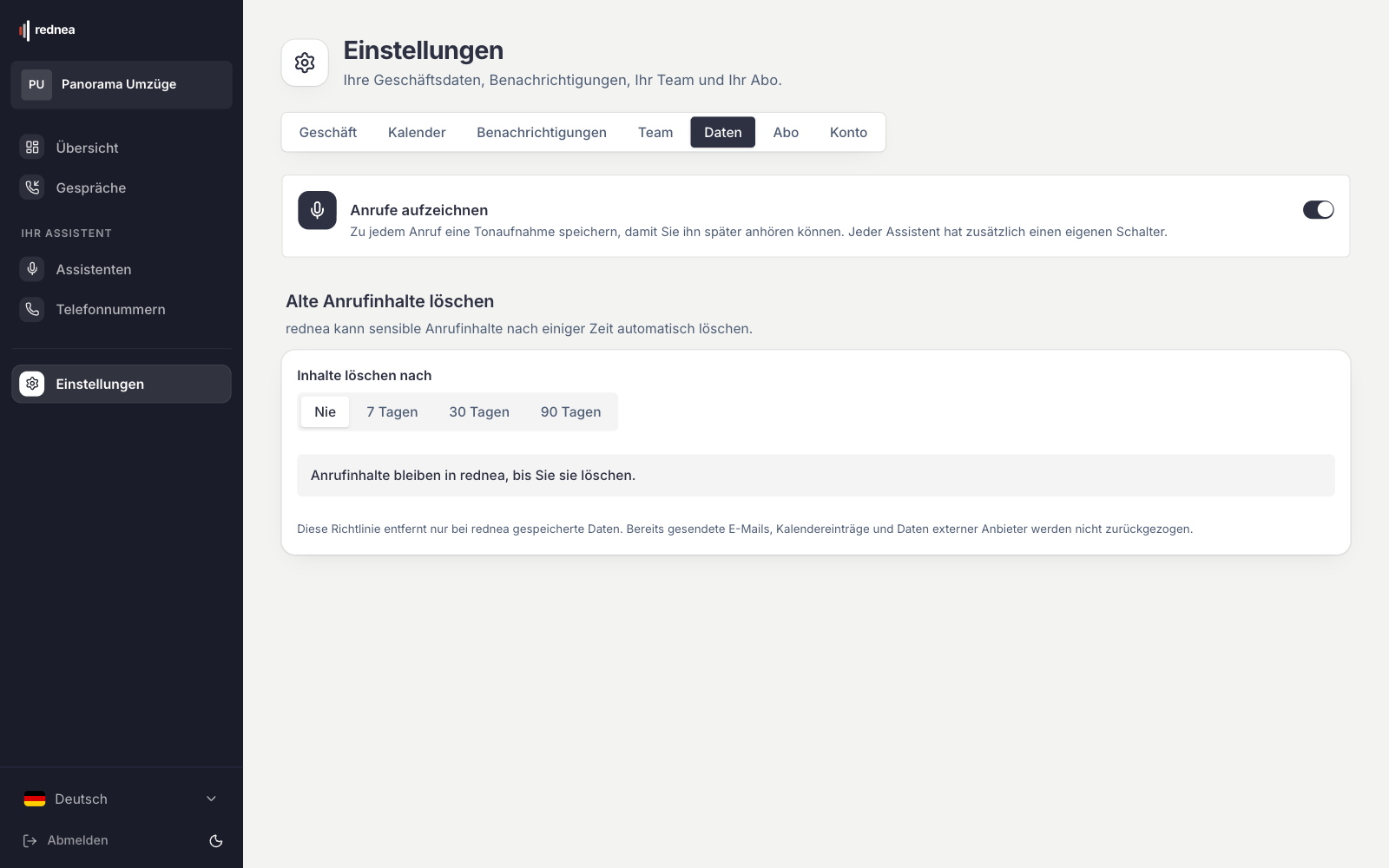
- Data: whether calls are recorded (Record calls) and when old call content is deleted (Delete old call content).
- Subscription: your subscription, payment method and invoices. See Invoices, payment and subscription status and Cancel your subscription.
- Account: your email address and password.
Areas that rednea switches on for you
These entries appear in the left column only when rednea has switched them on for your business. If you want to use one, write to info@rednea.ch.
- Knowledge: documents and answers your assistant uses in calls and chats. See Set up the knowledge library.
- Serviceability: the places you serve, so your assistant can tell people if you can help.
- Campaigns: outbound calls in which your assistant calls a list of contacts. See Outbound calls: set up and start a campaign.
You see less than described here?
With the Viewer role you see only Overview, Conversations, Subscription and Account (and Campaigns, read-only, when switched on). Only an Owner or Admin can change settings. Ask one of them to change your role under Settings → Team.
Common tasks
| Task | Where | Guide |
|---|---|---|
| Read or listen to a call | Conversations → click the call | How the assistant answers calls |
| Change the greeting | Assistants → Basics tab → First sentence of the call | Setting up instructions |
| Adjust the instructions | Assistants → Instructions tab | Setting up instructions |
| Test a change | Assistants → Test Call → Test draft | Try rednea before you start |
| Change the voice | Assistants → Basics tab → Voice | Choosing the right voice |
| Set up transfers to a person | Assistants → Phone tab | Transfer calls to a person |
| Change the opening hours | Settings → Business | Addresses and opening hours |
| Change the summary recipients | Settings → Notifications | How the assistant answers calls |
| Connect your calendar | Settings → Calendar | Connect your calendar |
| Invite a person | Settings → Team → Invite Member | Invite your team |
| View invoices | Settings → Subscription | Invoices, payment and subscription status |
| Forward your existing number | at your phone provider | Connect your existing number |
| See the minutes used | Overview → Usage this month | Pricing & minutes |
Frequently asked questions
Is there a video introduction?
Yes. In Getting started (with video) our founder walks you through the dashboard.
A call went wrong. Where do I report it?
See A call went wrong? How to report it to us.
Where do I ask a question?
Write to info@rednea.ch.
Related articles
Still have questions?
Write to us — we're happy to help. Or listen to a live demo right in your browser.